
How the Complyr app is organised
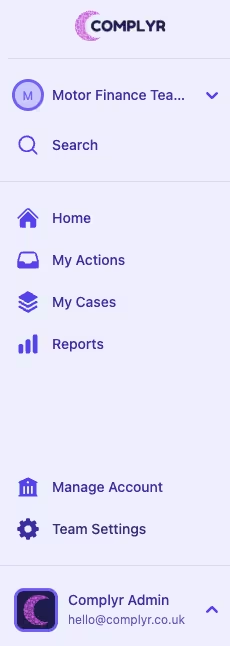
Key navigation areas in the app are found in the sidebar.
Sidebar menu
-
Home: your dashboard, including an overview of team statistics and full case list views
-
Account Admin - the highest admin level, permitting the user to configure and manage all areas of the system
-
Team Admin - permissions at team level only, permitting the user to configure and manage settings within their assigned teams. This includes assigning other Team Admin users
-
Team Selector: you can switch between teams by using the dropdown menu at the top of the sidebar. Data is scoped to the selected team
-
Search: a shortcut to finding case files. You have to type at least three characters before the search can begin
-
My Actions: tasks assigned to an owner - these tasks are shown both on a case and in My Actions
-
My Cases: the user's assigned case list, with an “all cases” scope option and it's the main case list they work from. Each case has a type, status, assignee, actions, parties, files, notes and messages
-
Reports: analytics reports (Professional and Enterprise plans) are where new reports are created; saved reports can also be viewed and downloaded
-
Manage Account: can only be accessed by Account Admin users. Nominated users can add/disable users, add/edit/delete teams and see billing information
-
Team Settings: nominated Team Admin users can make changes at team level. This includes disabling users, adding/configuring case types, adding data sets, configuring case list columns, creating a URL for secure public access, etc
-
Profile Menu: found at the bottom of the sidebar - click Your Name to open it
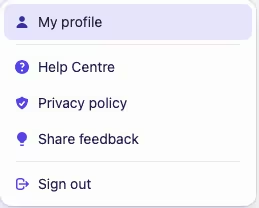
Profile menu
-
My profile: view your user profile and update your profile picture
-
Help centre: access the Complyr Help Centre
-
Privacy policy: view the Complyr privacy policy
-
Share feedback: share your feedback with the Complyr team
-
Sign out: sign out of your Complyr account