
Your first case
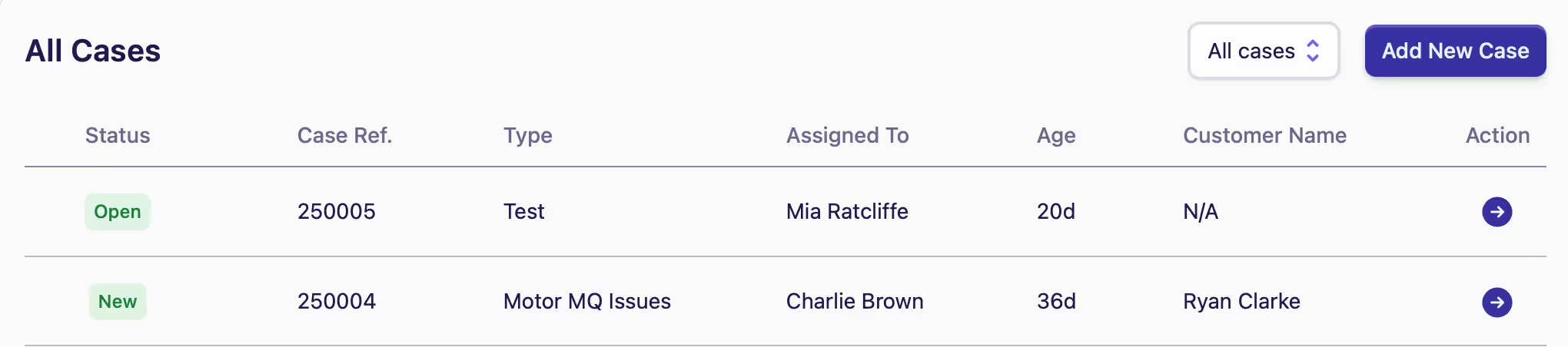
New cases can be added by clicking either the Home menu item or the My Cases menu item found in the sidebar.
-
Select Add New Case. If there's only one case type, you'll be taken straight to the new case screen, so you can go to step 4
-
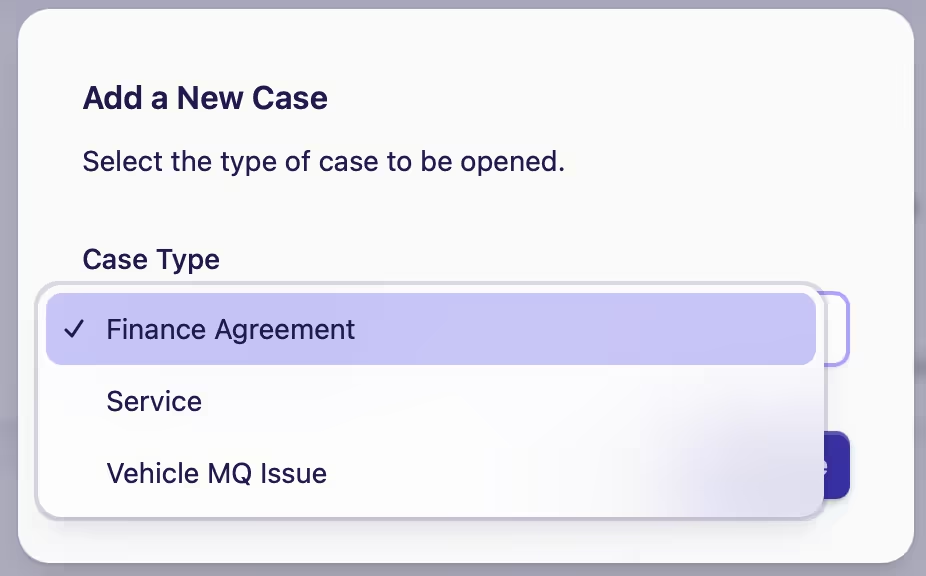
Select the Case Type from the dropdown menu
-
Click on Add Case to open the case form
-
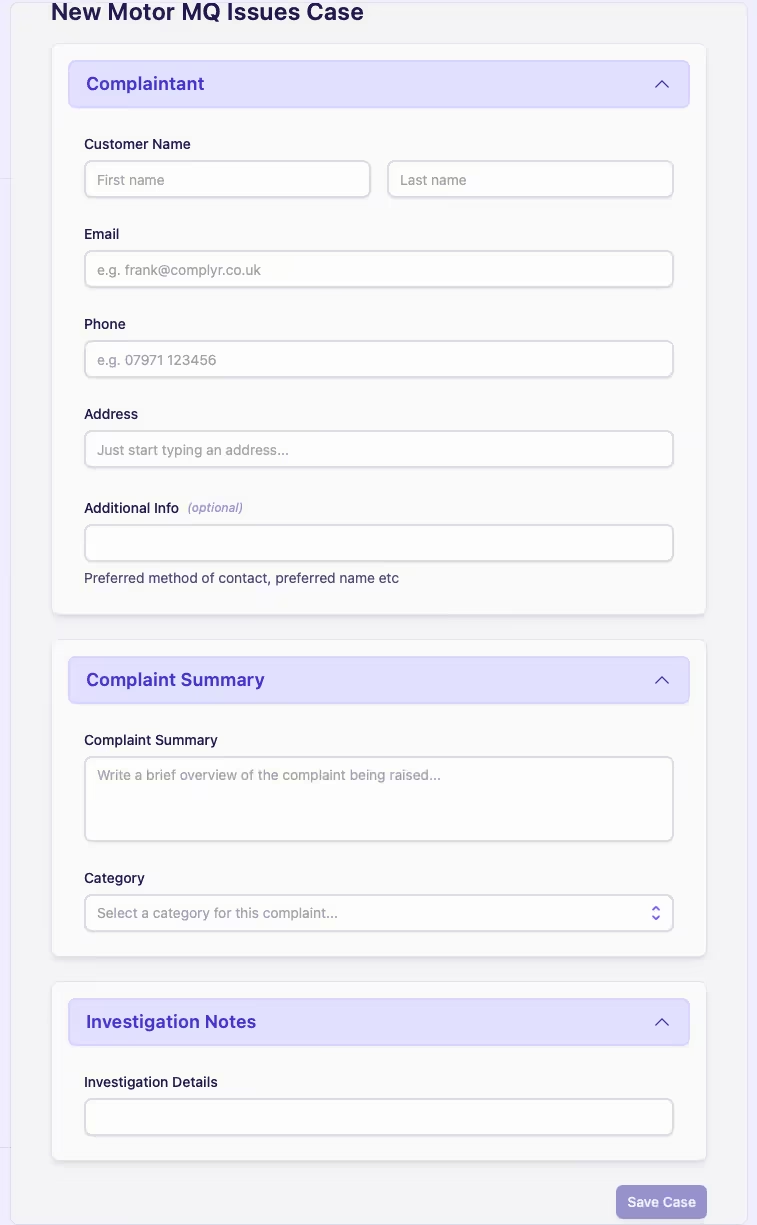
Fill in the case form fields
-
Click on Save Case
Saving a new case
Unless a field has (optional) beside its heading, all displayed fields must be completed before the new case can be saved
Read more about Managing Cases.