
Managing Cases
Team Dashboard
Select the team the team that you wish to view from dropdown at the top of the sidebar menu.
-
All open cases and actions, and the due and overdue actions belonging to the selected team can be seen on the Overview card
-
The All Cases card shows all cases assigned to the selected team, and allows you to filter to only see cases assigned to you
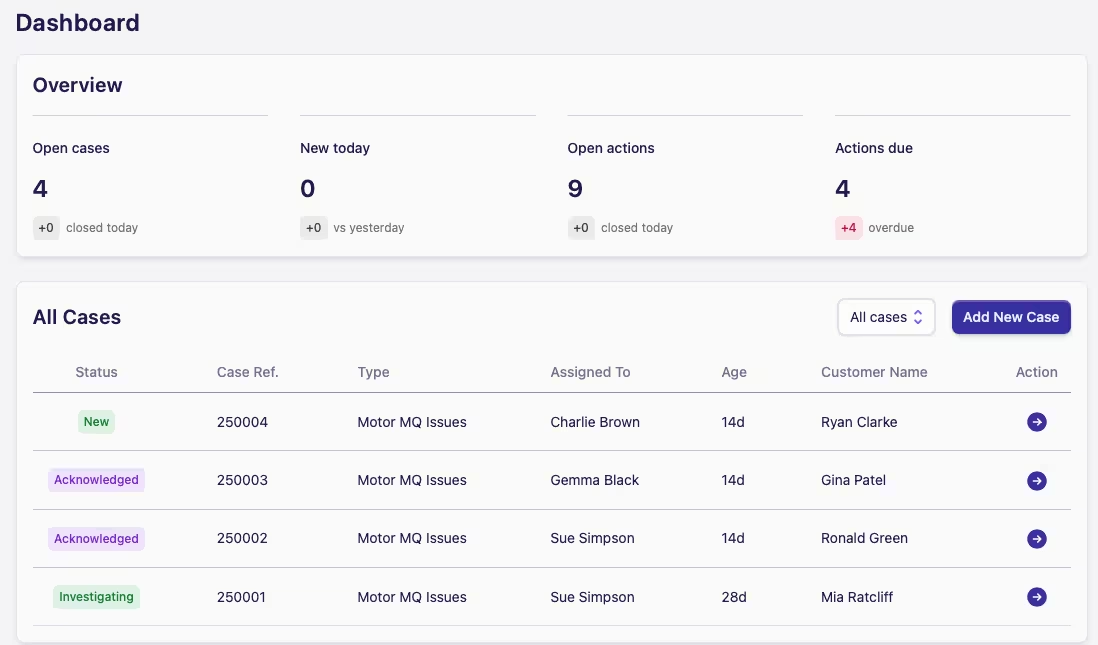
To filter the cases view either:
-
Go to the All Cases card and selecting Only my cases from the dropdown next to Add New Case in the top right
-
or, click on My cases in the sidebar menu
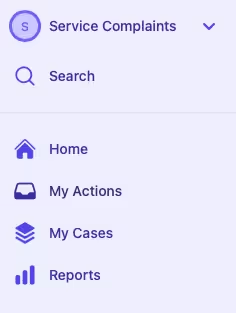
My Cases
The summary screen will look similar to this:
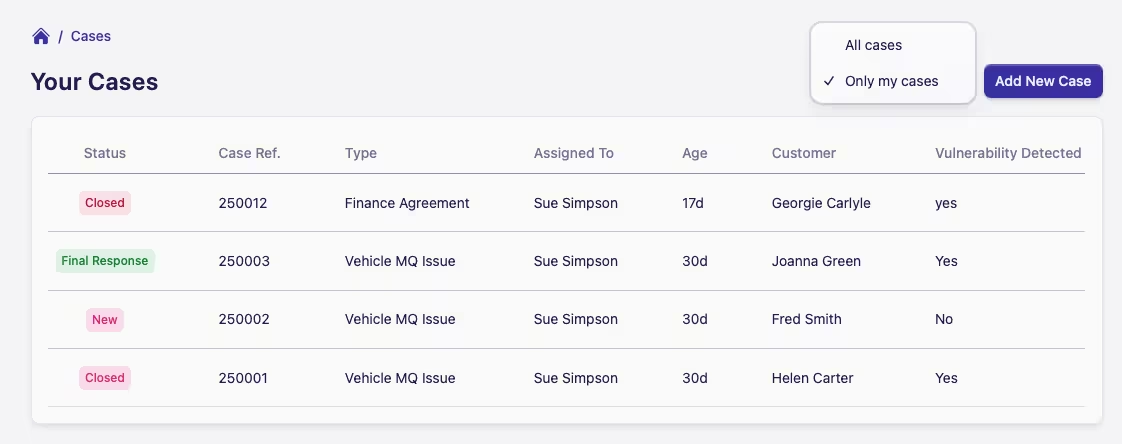
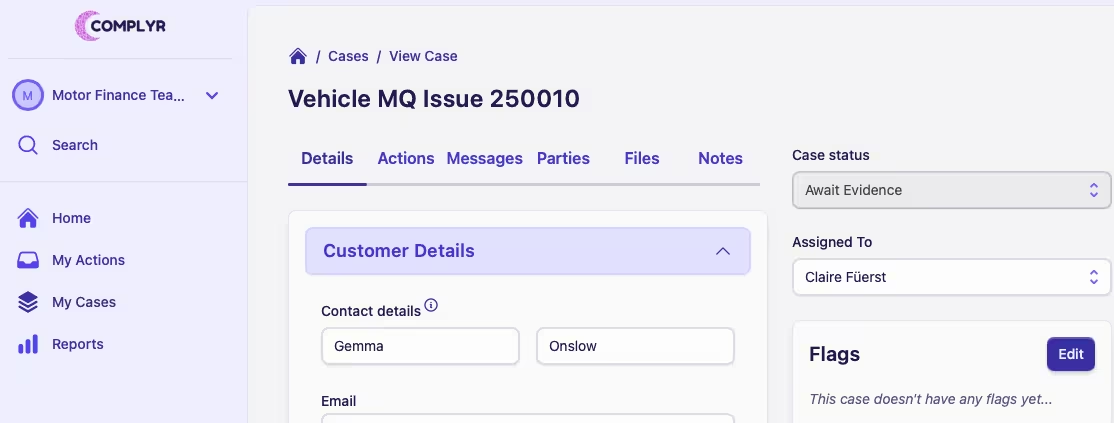
To view or update a case, simply click on a Case Row to open up the Details section of the chosen case.
What Information is stored in a case?
When you open a case you'll see:
-
Details: the case form (fields are defined by the case type)
-
Actions: tasks with owners and due dates
-
Messages: messages to/from parties and includes system events like uploads or sharing notes. The message feature is only available on Professional and Enterprise tiers
-
Parties: individuals and companies related to the case
-
Files: uploaded files (optionally, categorised and shared with parties)
-
Notes: internal case notes (optionally, shared with parties)