
Invite a party to case portal
In order for parties to access the case portal, they must first be invited to access it through the case. A party can be associated with multiple cases and access to each of those cases is controlled independently.
How to tell if a party has been invited
The Share Code value on the Parties tab of a case shows if a party has been invited to the case portal.
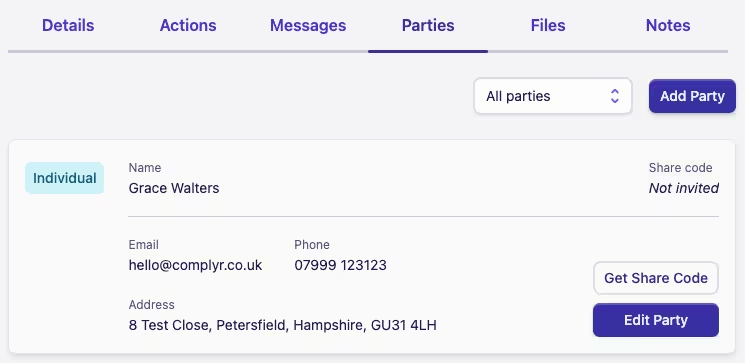
If a party has not yet been invited, the Share Code will show Not invited, whereas if they are invited you will see that party's share code in that field.
Where a Share Code is displayed, hovering over it will reveal how long until that party's access to the current case expires.
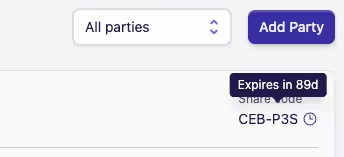
Clicking the Share Code will copy it to your clipboard - helpful if you need to email it to the party, for example.
Inviting a party
To invite a party to the case portal, or to extend their access by sending them a new share code:
-
Open a case and navigate to the Parties tab
-
Click the Get Share Code button
-
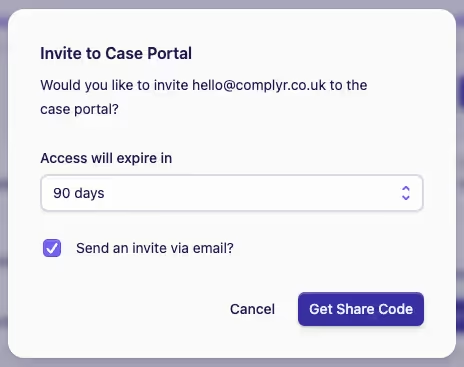
Choose how long the party should be able to access the Case Portal for and whether Complyr should send the party an invite via email
Note: Both of these options can have defaults set by a team admin, who can also choose whether to allow them to be set here or not. If defaults have been set, you may not see one or both of the options here. See control case portal access for more details. -
Click the Get Share Code button to generate a share code
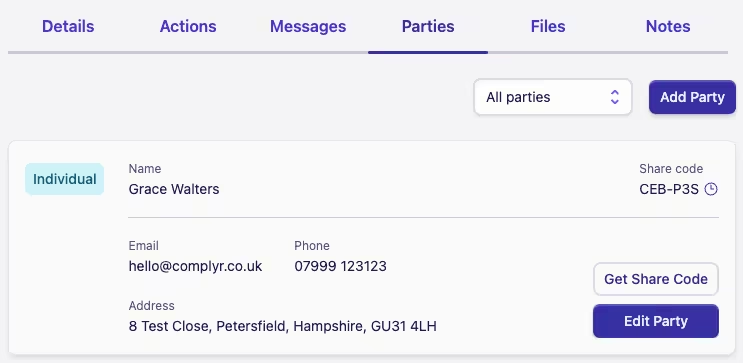
If selected, or set as the default, an invite email will also be sent to the party at this point.