
Send a message to a party
You can't send messages, share notes, or exchange files with a party through the case portal unless:
-
The party has been invited to the case
-
The party has a valid Share Code (i.e. it hasn't expired)
To send a message to an invited party via the case portal:
-
Navigate to the relevant case and select the Messages tab
-
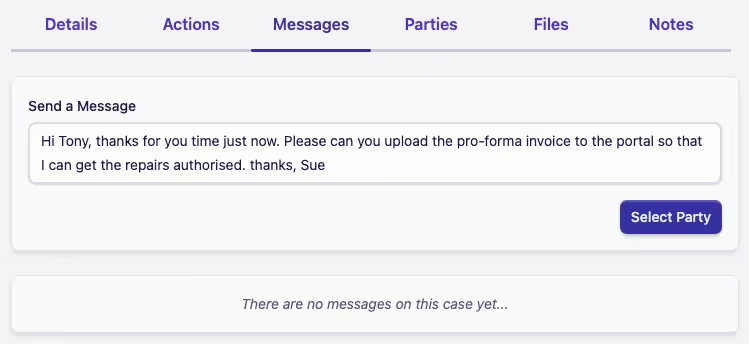
Type your message in the Send a message text box at the top of the messages list
-
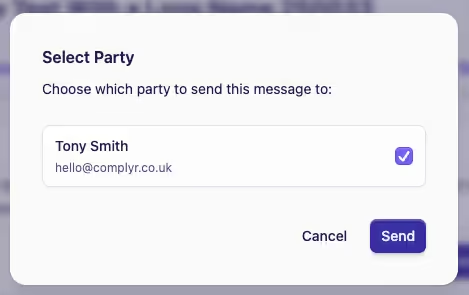
Click the Select Party button to open the party selection dialog
-
Select the party you wish to send the message to from the list, then click Send
-
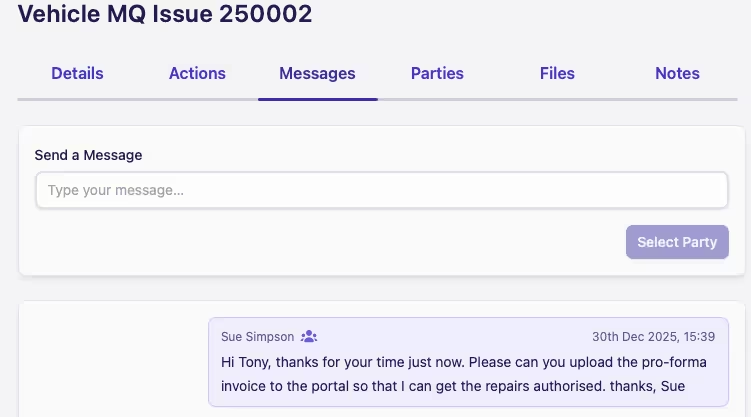
The message has been sent and will now appear in the messages list below
What the party sees
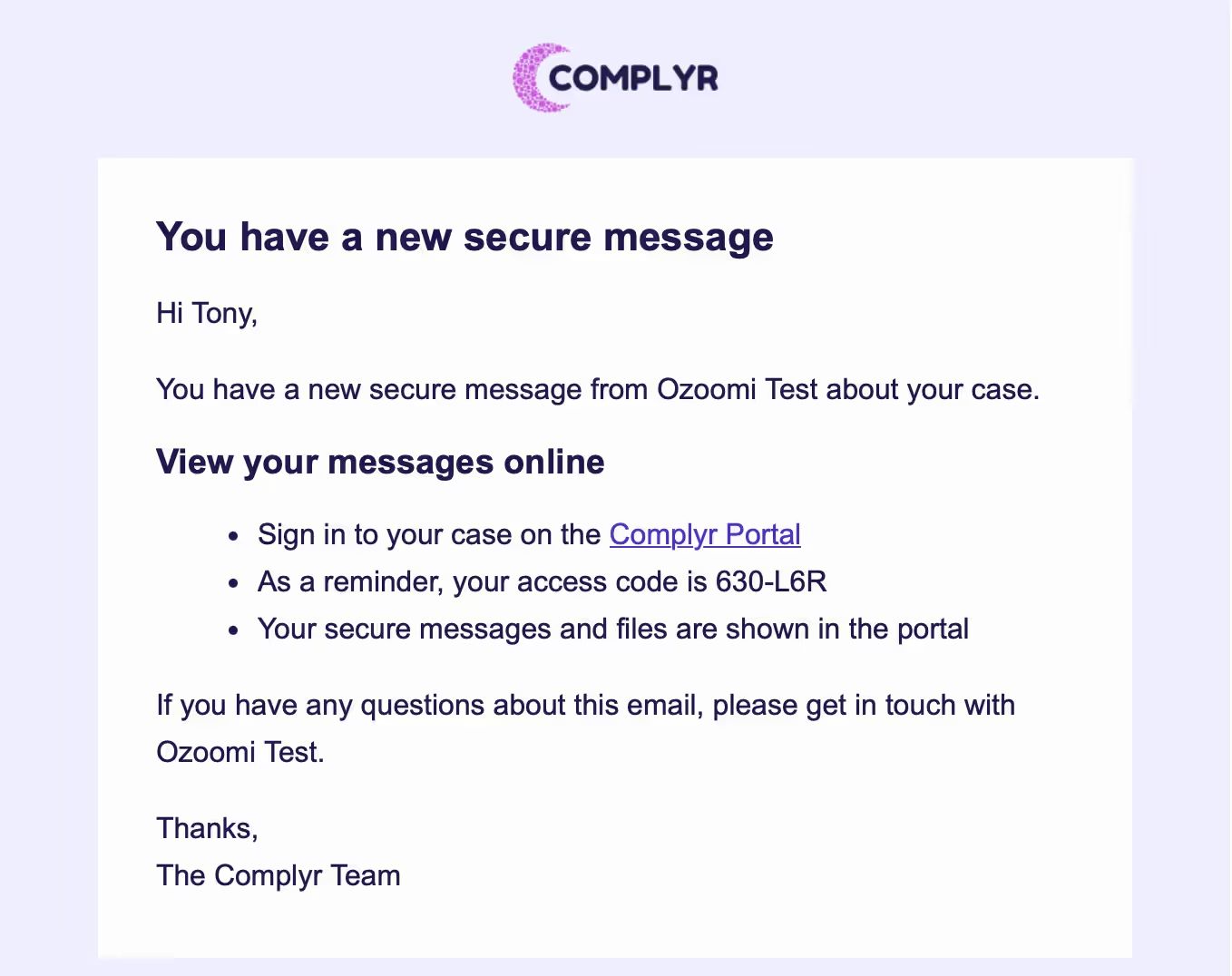
Meanwhile, the invited party will receive an email notification informing them that they have a new secure message waiting for them in the case portal, and reminding them of their Share Code:
Once signed in to the portal, this is the view of the message the invited party has:
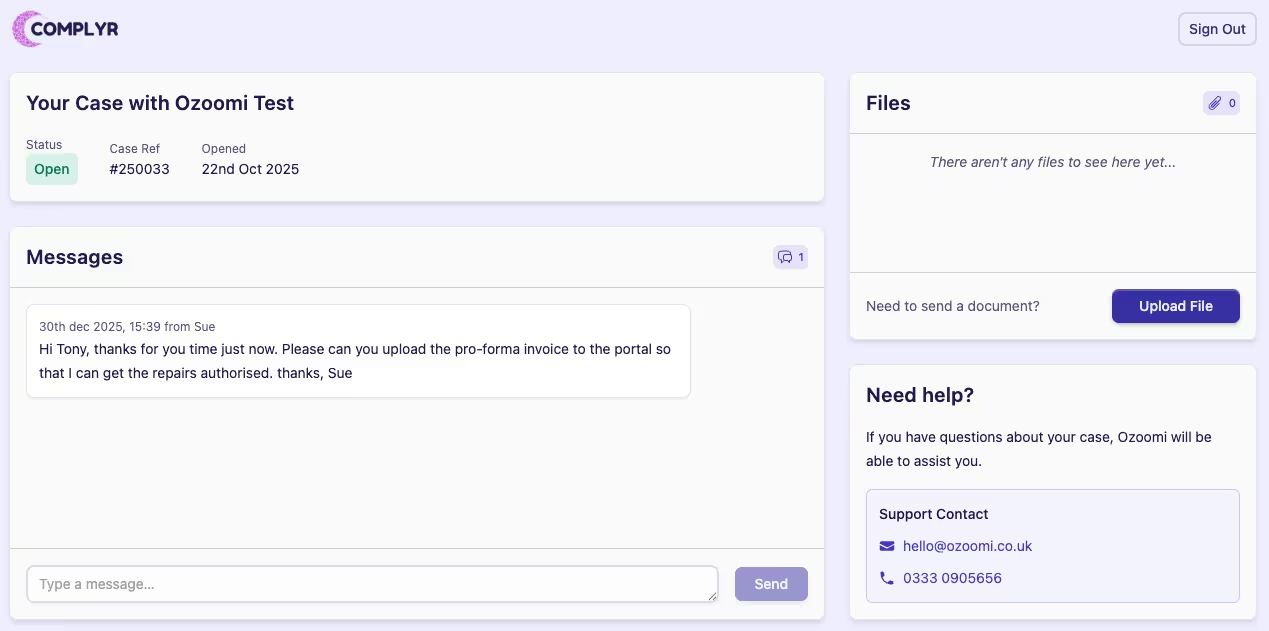
From here the party can securely reply to your message, or upload files as needed.