
Adding notes
Case notes can be added and viewed in the Notes tab in each case.
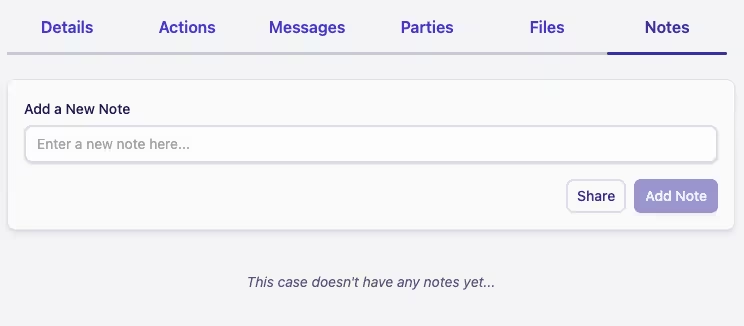
To add a new note to a case, follow the steps below:
-
Open a case and go to the Notes tab
-
Enter your note in Add a New Note
-
Click the Add Note button
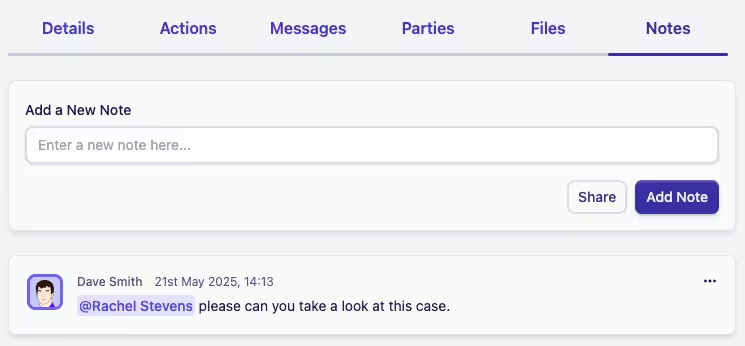
Although the Add a New Note input is only a single line initially, you can type in as many lines as you need. The input will grow as you type to make sure your new note is easy to read as you create it.
Formatting notes
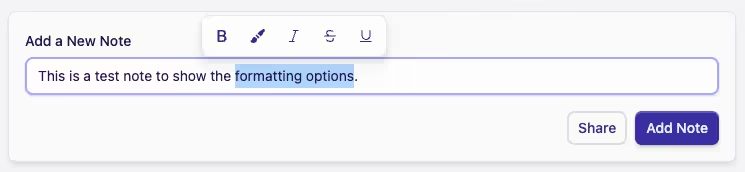
When adding notes you can add text that is in bold, italic or underlined. You can also add text that is in strikethrough or highlighted.
To format notes:
-
Select the text you want to format
-
Select the format you want to apply
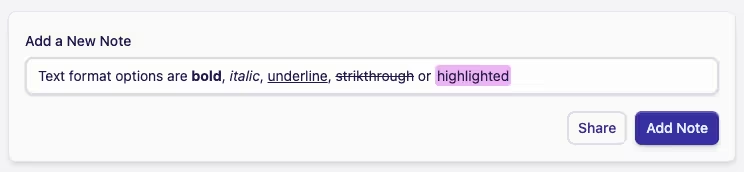
Don't forget: You can combine formats, for example to create text that is bold, italic and highlighted.
Mentions
When adding a note, it's also possible to mention a teammate by typing a @ followed by the first few characters of their name.
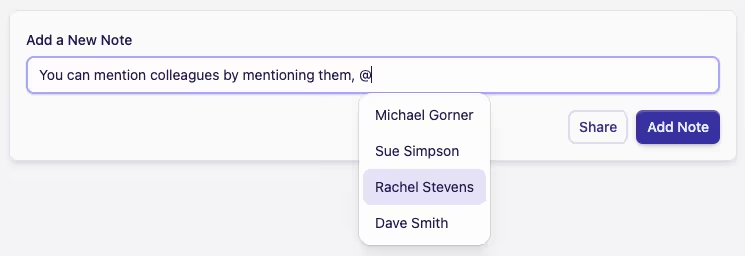
Then just select the name you want to mention and they will be added to the note.
Only a few teammates are shown in the initial list, start typing their name to see more options!
When you mention another user in a note Complyr will review the note and create an Action of type Mention on the case, assigned to the mentioned user.
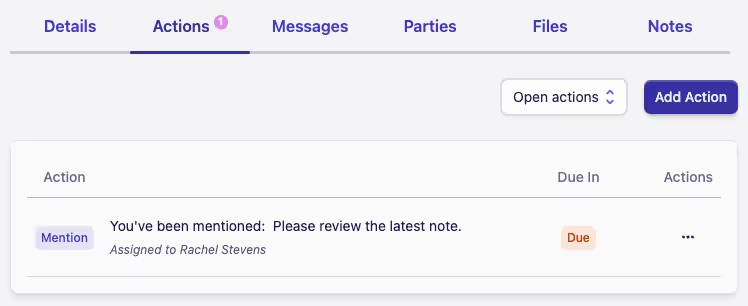
The Action description will be set to intelligently mirror the intent of the note.