
Add, rename or delete a file
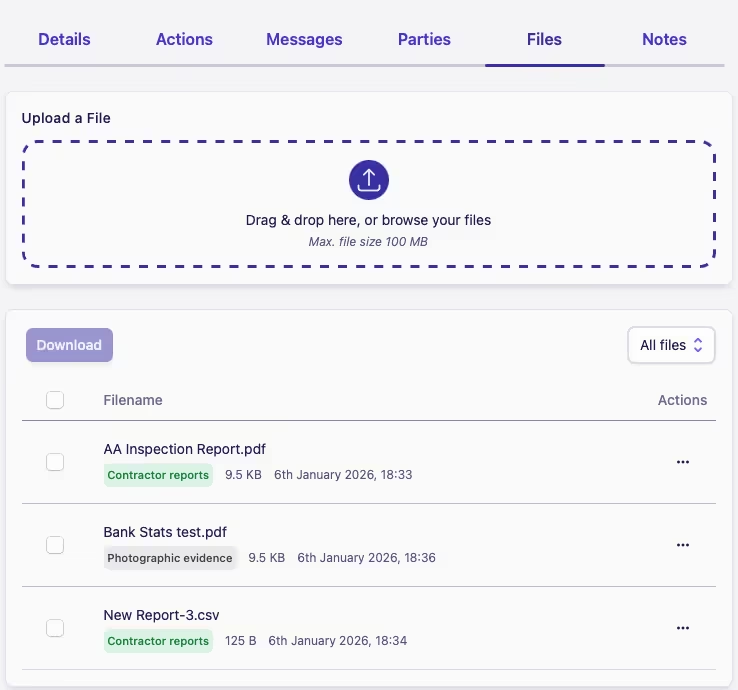
The Files tab in a case is where you can securely upload, download and browse all files associated with the case.
Adding a file
To add a file to a case:
-
Either drag and drop a file from your device, or click the Upload a File panel and select the file you want to upload
-
The File Upload dialog will open
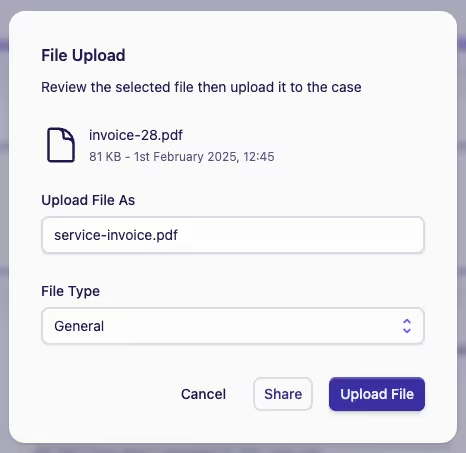
This allows you to change the filename if you want to (for example, changing a generic filename to something more meaningful to the case), and also to assign a File Type from the file types configured on the case type.
-
When ready, click Upload File
Supported file types
Complyr supports the following file types:
- Audio: MPEG (MP3), MP4, WAV
- Documents: PDF, RTF, Word, Excel, PowerPoint
- Images: AVIF, GIF, HEIC, HEIF, JPEG, PNG, TIFF, WEBP
- Text: Plain, Markdown, CSV
- Video: MP4, WEBM, QuickTime
The maximum size allowed is 100 MB per file.
Rename a file
Once a file has been added it's still possible to change the filename or file type at any time.
-
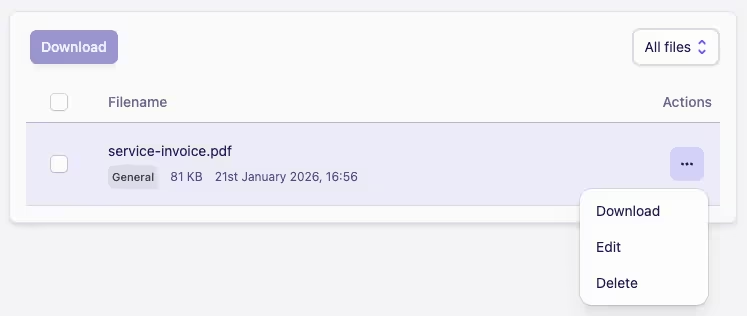
Click the Actions menu ··· then click Edit
-
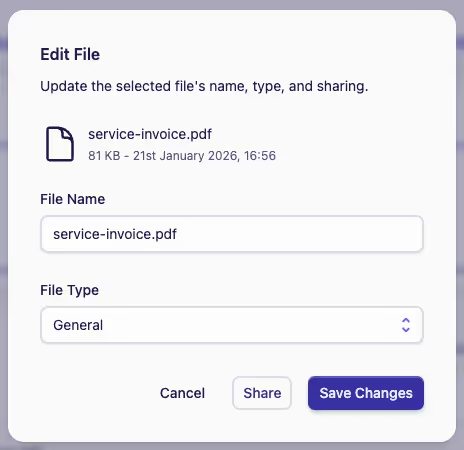
The Edit File dialog will open
-
Apply any edits to filename and/or file type
-
Finally, click Save Changes
Delete a file
To delete a file:
-
Click the Actions menu ··· then click Delete
-
You will be prompted to confirm you want to delete the file
-
Click Delete to confirm you want to delete the file