
Add, edit, delete a file type
Adding file types allows you to categorise files that are uploaded to cases. Categorisation is useful for quick and easy filtering of files when working on a case, or downloading individual or bulk files
Add a file type
To add a new file type:
-
Select a case type to configure and navigate to the Settings tab
-
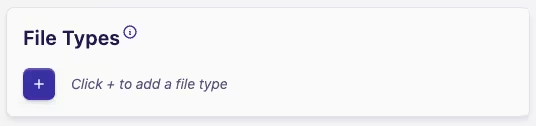
Click the + button on the File Types card on the Settings tab
-
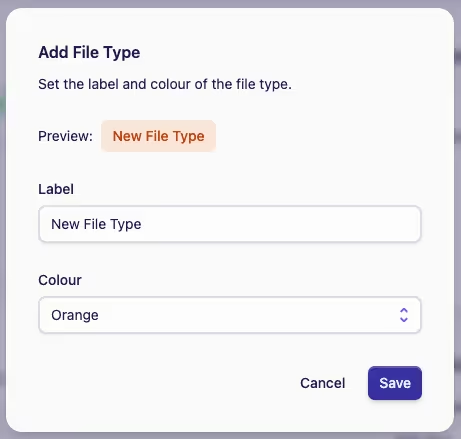
In the Add File Type dialog, enter a label for the file type and choose a colour
-
Click Save to add the new file type
-
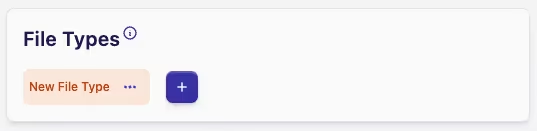
The new file type will now be visible in the File Types card
Edit a file type
To edit a file type:
-
Select a case type to configure and navigate to the Settings tab
-
Locate the File Types card
-
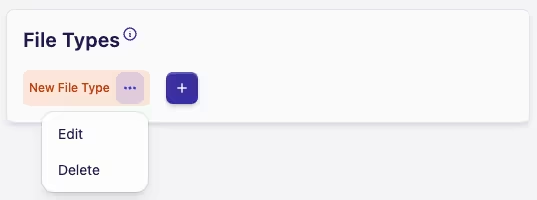
Click the Actions menu ··· on the file type you want to edit
-
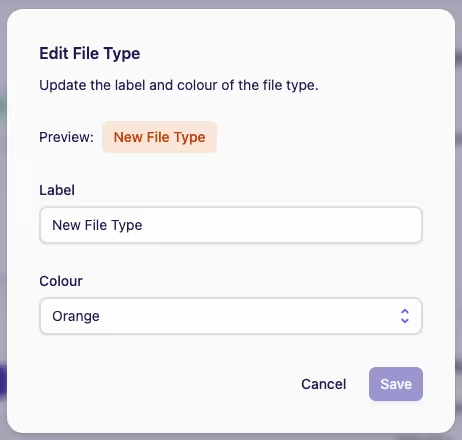
Click Edit to open the Edit File Type dialog
-
Make your changes and click the Save button
Delete a file type
To delete a file type:
-
Select a case type to configure and navigate to the Settings tab
-
Locate the File Types card
-
Click the Actions menu ··· on the file type you want to delete
-
Click Delete to open the Deleting a File Type dialog, which prompts you to confirm you want to delete the file type
-
Click Delete again to confirm you want to delete the file type