
Map case list columns to data
The columns that appear in the case lists on the Dashboard and My Cases are defined at a team level, so are common to all case types under that team.
As each case type has its own Case Form Definition, if any Custom case list columns have been defined it's necessary to map them to values from the case form of each case type. This can only be done after the Case Form Definition has been configured.
It's okay to leave a mapping blank if a case type does not have data to match a certain custom column; in that case, for any cases of that type, the column will be blank on the case lists.
To map the case list columns for a case type:
-
Select a case type to configure and navigate to the Settings tab
-
Locate the Case List Columns card
-
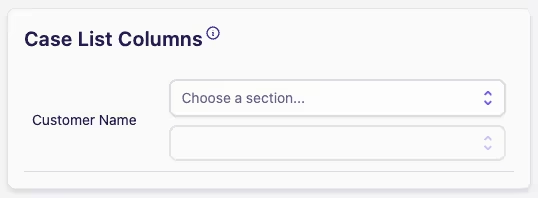
In this example, at the team level a column for Customer Name has been defined, but it has not been configured for this case type yet
The first step to map it is to select the section on our case form that has the data we want to map to this Customer Name column.
-
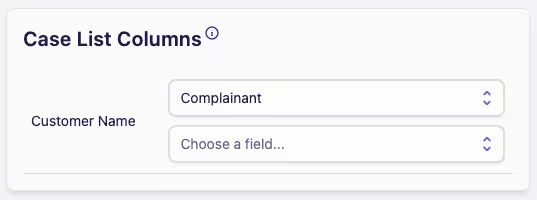
Here we have a section on our case form called "Complainant", which is where we capture an individual party that is the complainant of the case
As this is a party case form element, Complyr will automatically make the name of the party available for selection in the field dropdown
-
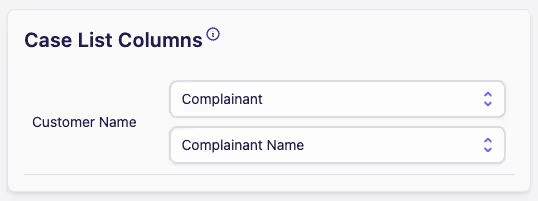
Here we had previously given the party case form element the label "Complainant Name", which is therefore available for us to select as the field
-
Now, when we look at the case list we will see the complainant name appear in the Customer Name column

You can update case list column mappings at any time. Please be aware though, depending on how many cases you have added to Complyr it may take a few minutes to update the custom case list columns for all your cases.