
Add, edit, delete a status
Statuses are used in cases to provide a high-level view of progress and help you track the progression of a case through your process.
You should add all the statuses that you want to appear in:
-
The Status Workflow for the case type you are configuring
-
Cases, as an option for the user to select when managing an open case
You can have as many statuses in a case type as you need to represent the different stages of your process.
Add a status
To add a new status:
-
Select a case type to configure and navigate to the Settings column tab
-
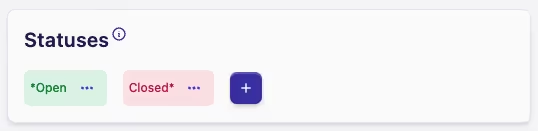
Click the + button at the top of the Statuses card
-
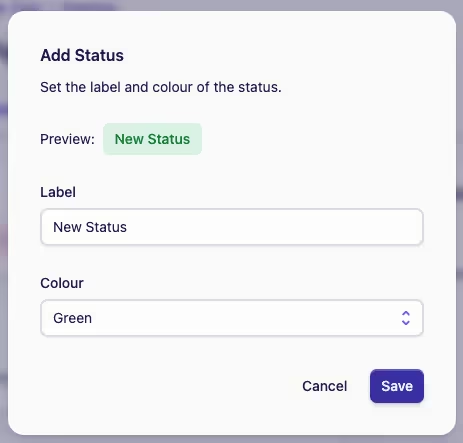
In the Add Status dialog, enter a label for the status and choose a colour
-
Click Save to add the new status
Initial and Final statuses
All case types must always have two special statuses. One to represent the initial/opening of a new case, and one to represent the final/closed status. These special statuses are automatically added when you create a new case type, and cannot be deleted, but they can be edited and renamed.
The final status must always be used to record the case as closed and is important for reporting and tracking cases.
Editing an existing status to become the Initial or Final status
A status that isn't currently the initial or final status can be made the initial or final status.
However, this should be done with caution, as often case forms, workflows, and reporting, rely on statuses and may need to be updated at the same time.
To change the initial or final status:
Edit a status
To edit a status:
-
Select a case type to configure and navigate to the Settings tab
-
Locate the Statuses card
-
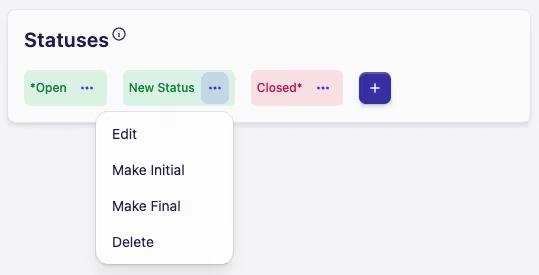
Click the Actions menu ··· on the status you want to edit
-
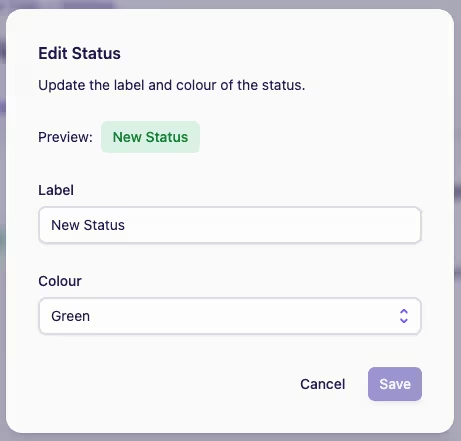
Click Edit to open the Edit Status dialog
-
Make your changes and click the Save button
Delete a status
To delete a status:
-
Select a case type to configure and navigate to the Settings tab
-
Locate the Statuses card
-
Click the Actions menu ··· on the status you want to delete
-
Click Delete to open the Deleting a Status dialog, which prompts you to confirm you want to delete the status
-
Click Delete again to confirm you want to delete the status