
Status workflow
Statuses provide a high-level oversight of a case. They act as milestones and help you quickly see where the case currently stands and understand what's needed to keep the case moving towards closure.
The status workflow is how you can control how a case moves between statuses as you manage it.
In the status workflow, the edges that connect statuses represent the transitions between statuses and are not directional. It's possible to move a case both up and down the status workflow.
Available statuses
The right-hand sidebar has a list of available statuses that you can use to define the status workflow.
Once a status has been added to the workflow, a case will only be able to move to that status when its current status is connected to that status by an edge in the workflow.
If a status hasn't been added to the workflow, and remains listed in the Available Statuses list, it will still be available in the status dropdown in cases. As it hasn't been added to the workflow, cases will always be able to be moved to that status.
Initial and Final statuses
The initial and final statuses represent the start and end of a case. By default, both of these statuses are included in the status workflow, but can be removed from the workflow if required (adding them to the available statuses list).
Read more about initial and final statuses here.
Add a status to the workflow
-
Select the Status tab
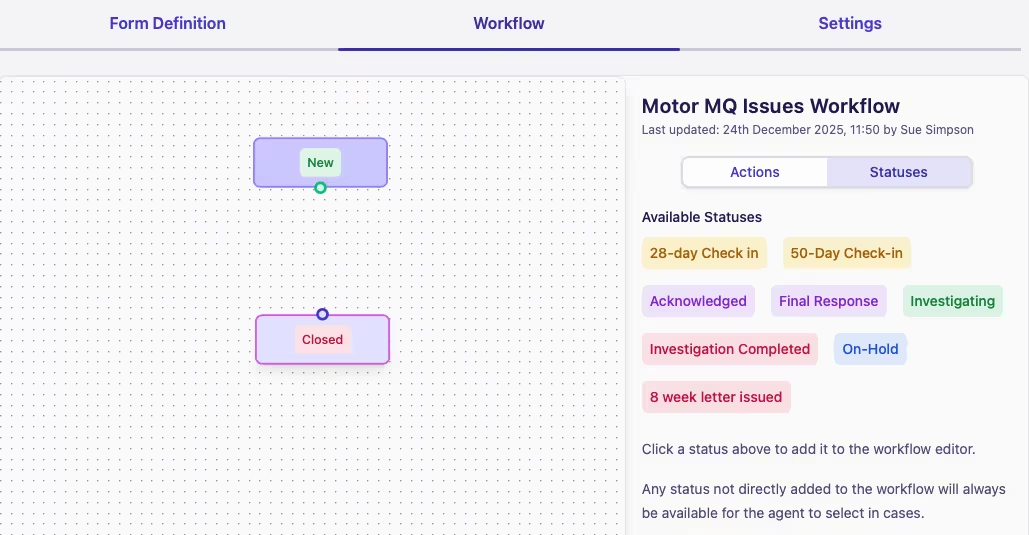
Note: here the initial and final statuses are shown as "New" and "Closed".
-
To add a status to the workflow, click on the status you require under Available Statuses and it'll automatically transfer over:
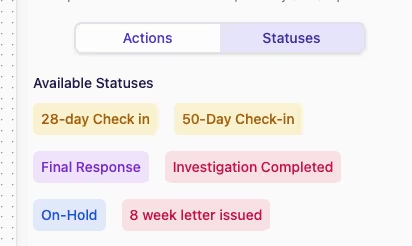
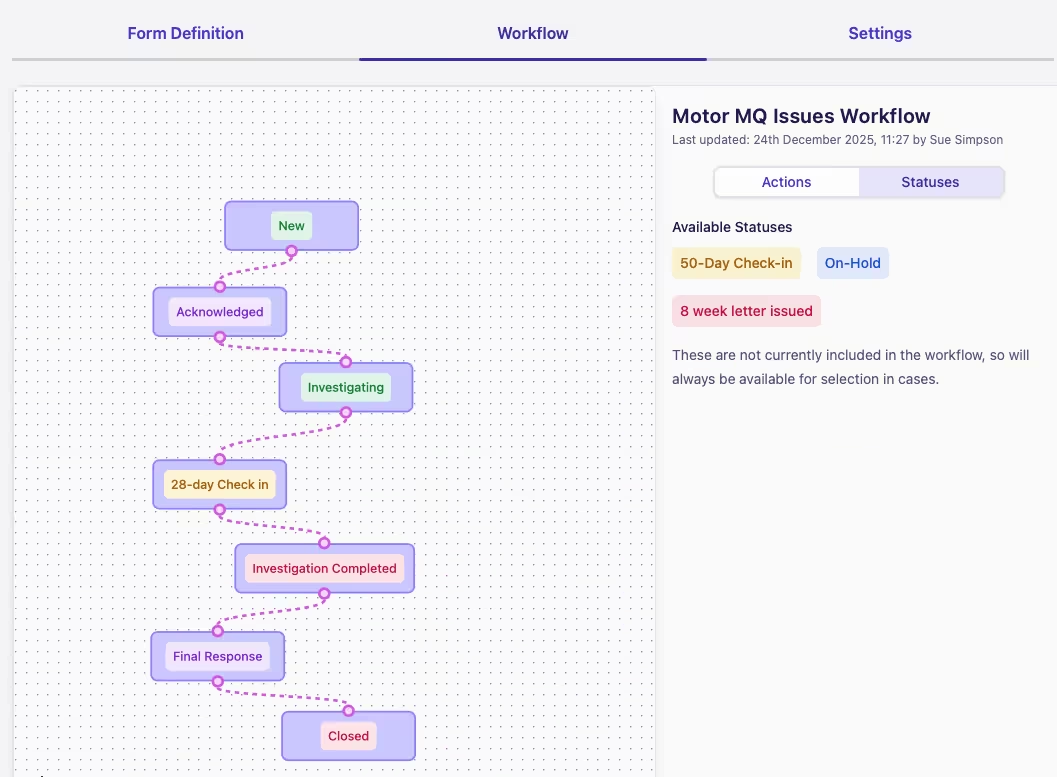
(Nodes without a connection will have green and blue ports displayed. A connected port will show as pink. You can have multiple edges connected to one port)
-
To add an edge to the workflow, click and drag from a port to the node representing the next step of the status workflow
-
Continue to map statuses until the workflow is complete and then Save Changes