
Case form fields
Each section on a form definition can contain one or more fields, where a field is a type of data that can be captured about a case.
Adding fields
-
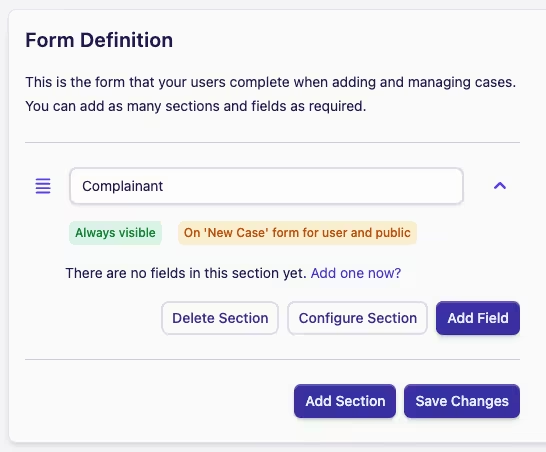
Click the ∨ on the right of the section heading where you want to add a field
-
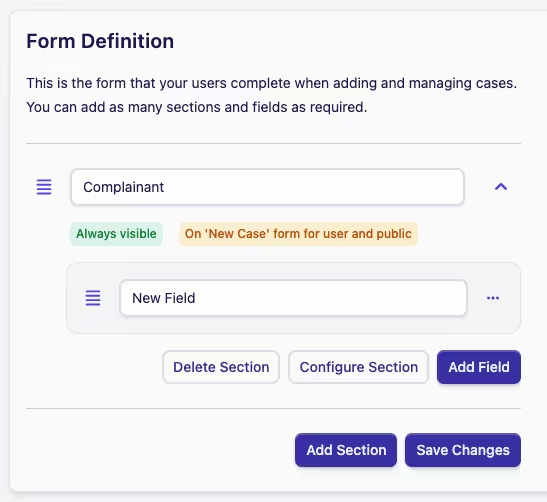
This will show the section details, now click Add Field to create a new field
-
Once added, the new field will have the title "New Field". Update this to the title of your choice, to reflect the data you want to capture in this section
Configuring a field
-
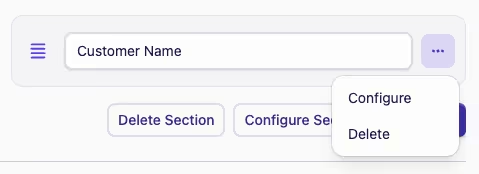
Click the Actions menu ··· of the field you want to configure
-
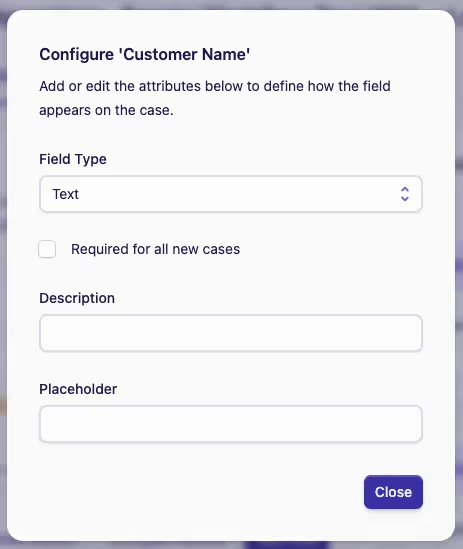
Click Configure to open the field configuration dialog
-
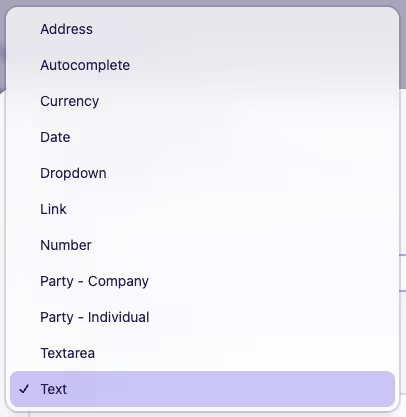
Complyr provides you with a large number of Field Types to choose from. Each Field Type has a different set of properties and options to configure. There are a few common options though:
-
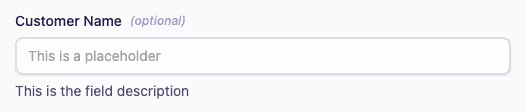
Required for all new cases: controls whether the field is mandatory or optional on new case forms
-
Description: shows a short descriptive text, just under the field
-
Placeholder: shows a text hint inside the field, when the field is empty
-
-
Each Field Type and its configuration properties and options are described below. Select from:
Address
Address fields provide a smart address autocomplete function that allows you to search for an address by postcode or first line. Once an address has been selected, the address is populated into the field, but can be changed by the user line-by-line, as needed.
The placeholder text for an address field can't be changed.
Autocomplete
Autocomplete fields pull information from a data set - read more about data sets here. The data set provides the option list for the autocomplete field, which then allows the user to search and select an option.
An additional configuration option - Data set - is a dropdown listing the data sets available for the current team.
Currency
Currency fields allow the user to enter a numerical value with an optional currency symbol at the start of the field.
An additional configuration option - Symbol - can be set with either a currency symbol (e.g. $) or a currency code (max. 3 letters, e.g. USD). If no symbol is set, no symbol will be shown.
Date
Date fields allow the user to enter a date in the format DD/MM/YYYY. Alternatively a date picker is provided so that the user can select a date from a calendar.
Dropdown
Dropdown fields let you define a list of options that the user can choose from in a dropdown. This field type is best suited to shorter lists of options - if you have a long list of options, consider creating a data set and using the Autocomplete field type.
An additional configuration option - Options - can be used to add one or more options to the dropdown.
Link
Link fields allow the user to enter a website URL.
On a case form this field type can be identified by the Link icon at the start of the field and the Open icon at the end. Clicking the Open icon will open the URL in a new tab.
Number
Number fields allow the user to enter a numerical value. Numbers in this field type can only be seperated by a decimal comma.
If you wish to add spacing to numbers to make them easier to read, and don't need them as a value metric in reporting, select a text field.
Example: you may want spaces in a phone number and wouldn't need this as a value metric in reporting, so a text field may be more appropriate than a number field.Party - Company and Party - Individual
Party fields allow the user to add a company or individual to a case, which will then appear under the Parties tab in the case. Each party field can capture: company name (Party - Company, only!), first name, last name, email address, phone number and address.
If a party field is set as required, you are able to individually mark whether the email address, phone number and address are mandatory.
The placeholder text for a party's first and last name can't be changed. Additional placeholders for company name, email and phone are provided.
Textarea
Textarea fields allow the user to enter a paragraph of text and easily view it when working on a case.
An additional configuration option - Min. Lines - can be used to set how many lines of text are visible on the case form. The default value is 3 lines.
Text
Text fields allow the user to enter a short string of text. This is best used for short text responses, for example a case reference number or a short description.
If you want to capture longer text responses, and want them displayed, consider using a textarea field type.
-
Once you have configured the field type properties, refer to important to note at the bottom of this page before commiting them. If you are happy to proceed, click Save Changes.
How are fields used in reports?
Certain types of fields can be used as metrics or filters and breakdowns in analytics reports. When building your form definition it's important to understand what data you would like to include in your reports and make sure you use the correct field type.
Currency and Number fields as a report metric
Both currency fields and number fields can be used as metrics in reports. This means that you can add analytics reports that can sum, average or find min/max values for these fields.
Field types as filters and breakdowns
Autocomplete, currency, dropdown and number fields can be used as filters and breakdowns in analytics reports. Giving you the ability to refine your report data to meet your specific needs.
Once a Field Type has been saved on a new case form, it becomes locked in and can no longer be edited. This is to preserve reporting data. If edits are still needed, a new field should be added.
If you choose to delete the field because it has become obsolete, any data already captured in that field will be lost and any reports using that field as a metric, filter or breakdown will need to be updated to use the new field.