
Action workflow
The action workflow is where you map the workflow that you'd like your team to follow when managing a complaint case from start to finish. When a new case is added, actions representing the workflow you build are automatically loaded to the case.
As each action in a case is completed and marked as closed, the next action in the workflow becomes due, and so on until the end of the workflow is reached.
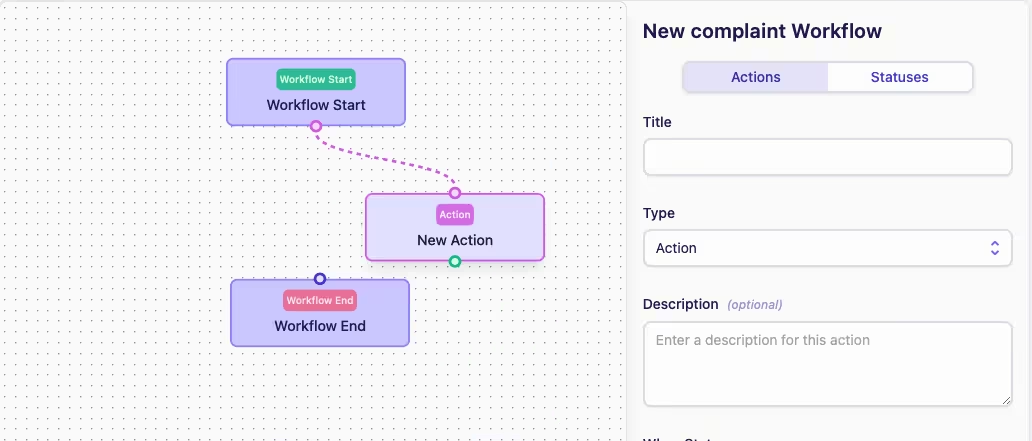
The default action workflow connects the Workflow Start to the Workflow End. Both of these default nodes must be included in a workflow and can't be deleted, however, you can change their titles and descriptions as you see fit.
You create and label nodes as you map each step of your action workflow between the two default nodes. You can add as many nodes, edges and paths as you need.
On action workflows, edges are directional and the animation shows the direction of the flow.
Adding a new node
There are a few ways to add a new node to your workflow:
-
Clicking and dragging from a port will create a new edge, if you drop the edge at a new location it will create a new node
-
You can redirect an existing flow by dragging from near the end of an edge, dropping the end of the edge at a new location will create a new node
-
Alternatively, you can delete an existing edge by highlighting it and clicking Delete Edge, then use one of the above methods to add a new edge and node
-
The new node will initially be labelled "New Action"
Configuring a node
To configure a node:
-
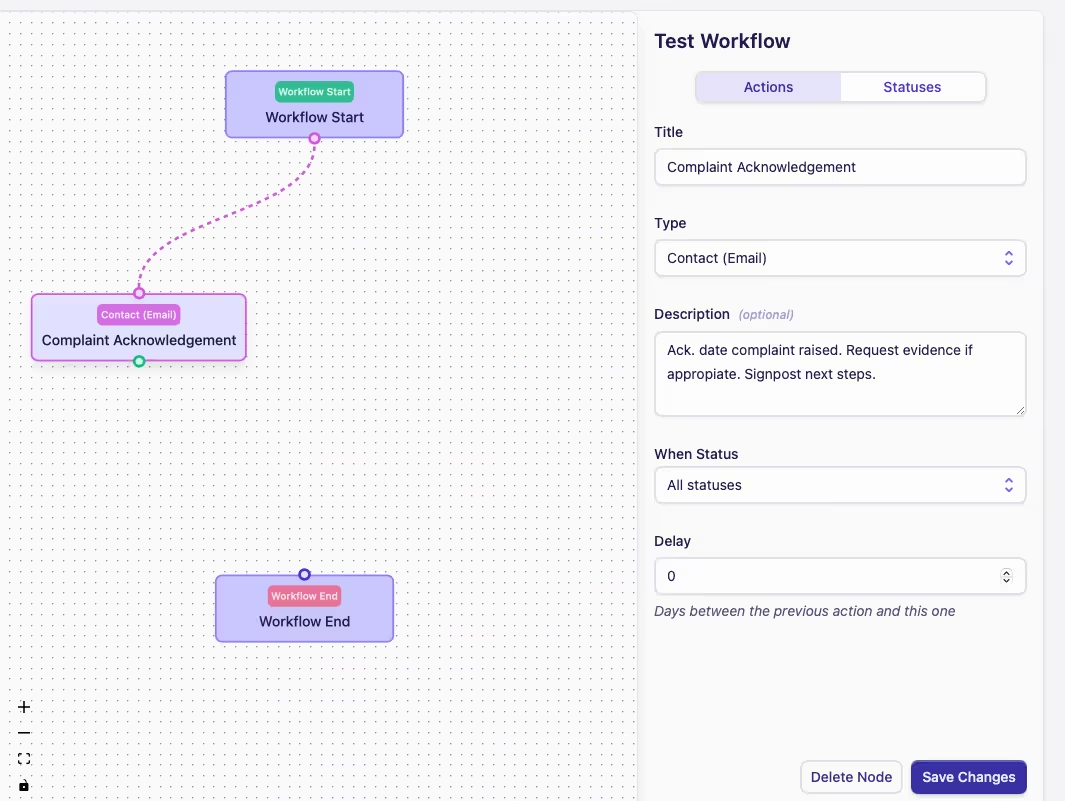
Clicking on a node opens that node's configuration in the right-hand sidebar
-
There are three fields that define the action:
-
Title: The title of the action (usually a short description of process stage or step)
-
Type: The type of action (e.g. Action or Contact (Email))
-
Description: An (optional) longer description of the action that needs to happen
-
Controlling when actions are due
By default, actions defined in your workflow are due immediately after a new case has been added.
There are two ways to control when actions are due:
-
When Status: Define when the action is due based on the status of the case
-
Delay: A number of days to wait before the action is due
Using When Status
To control when an action is due using the case statuses you have defined for the case type:
-
Click the node you want to apply the status control to
-
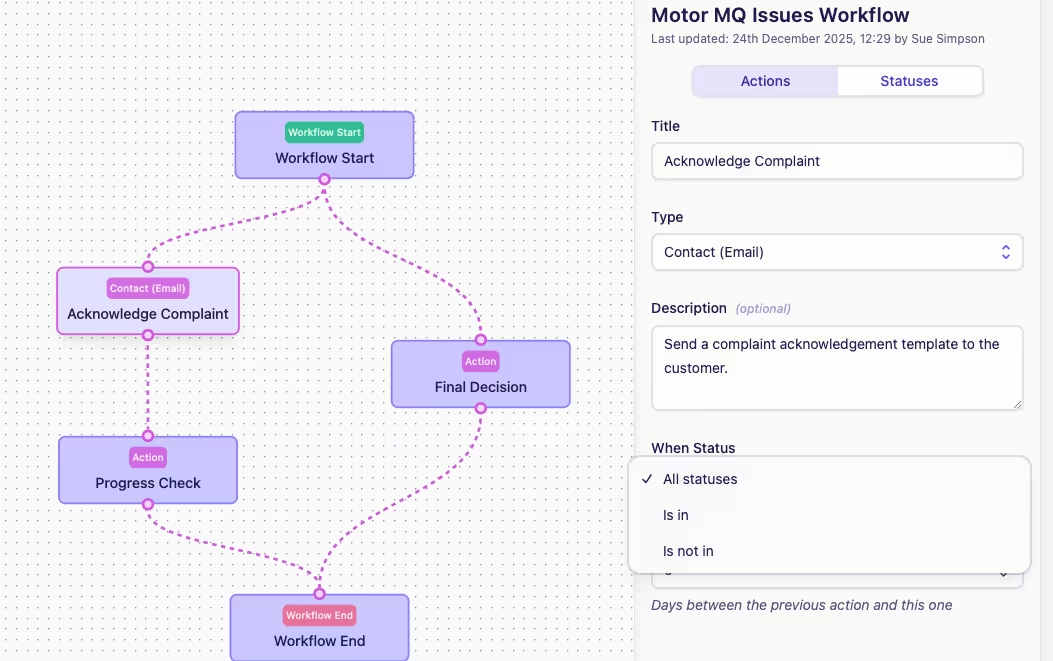
Go to the When Status dropdown in the right-hand sidebar
-
You can select one of the following options:
-
All statuses: The action is due when the case is in any status
-
Is in: The action is due when the case is in one of the selected statuses
-
Is not in: The action is due when the case is not in one of the selected status
-
-
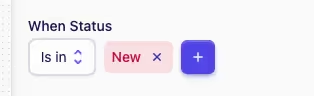
You can add one or more statuses by clicking the + button and selecting your chosen statuses
Delay
To control when an action is due using a time delay:
-
Click the node you want to apply the delay to
-
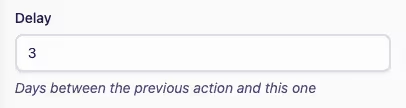
Go to the Delay input in the right-hand sidebar and enter the number of days you want to delay the action by
It's important to note that, for an action to become due, it's parent action(s) need to be marked as closed first, otherwise the children of those actions will remain in a Pending state.
For example, if an action is delayed by 3 days, it will not become due until both any parent actions are marked as closed and 3 days must have passed since the parent action(s) became due.