
Case form definition
The case form is the definition of what data is captured for each case.
A case form is divided into sections and fields so that it's easier to complete and the data is simpler to manage.
-
Sections are a heading (or sub-division) of the case form that contains one or more fields
-
Fields contain one single type of data that logically sits within a section
To help ensure that you capture all the information needed by your firm to manage your cases, create case forms using your workflow/process and reporting requirements. Having these to hand will help you to successfully configure the Sections and Fields of your Case Form.
To start defining a case form:
-
Select a case type to configure and navigate to the Form Definition tab
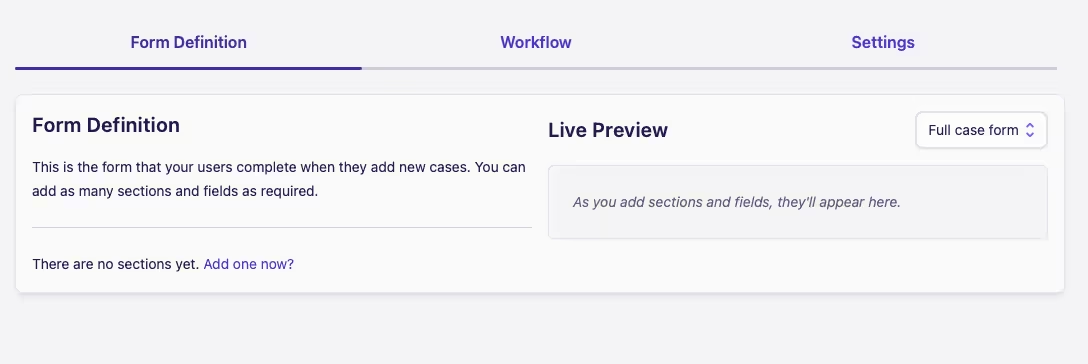
Case Form views
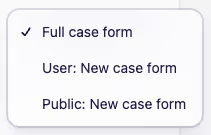
A single case form can be configured to provide three different views of the form:
-
Full Case Form: The default view when managing existing cases
-
User: New Case Form: The view for a user when capturing a new case
-
Public: New Case Form: The view for a public case form
By configuring the visibility of sections you can determine whether those sections and fields are visible in each view. This is useful to avoid, for example, resolution or compensation fields appearing on the form when you are capturing a new case.
By using the dropdown in the top right of the Form Definition tab you can switch between these views. When you switch view the Live Preview column will immediately update to show the selected view.
Building a Form Definition
You will build your form definition by adding sections, and then adding fields to each section. Configuring both sections and fields as you go.
As you make changes, you'll be able to see how your form will look in the Live Preview column to the right.