
Add, edit, delete a flag
If you want your cases to have flags, they must be configured in each case type.
Flags are useful for two reasons:
-
Highlighting an important aspect of the case and keeping it visible - see more in case flags
Example: Customer vulnerability must be included in complaint reporting to the FCA. Users also need the data to always be visible on a case file so that they can provide adequate support to the customer. -
Reporting - you can filter your data by using flags - see filters and breakdowns
Add a flag
To add a new flag:
-
Select a case type to configure and navigate to the Settings column tab
-
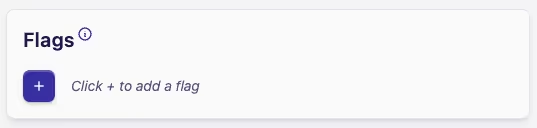
Click the + button on the Flags card on the Settings tab
-
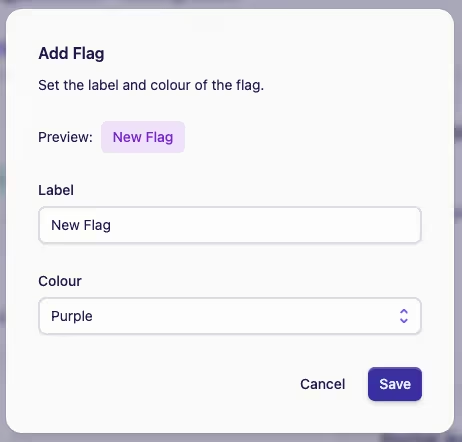
In the Add Flag dialog, enter a label for the flag and choose a colour
-
Click Save to add the new flag
-
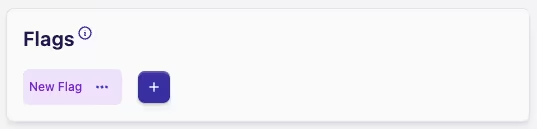
The new flag will now be visible in the Flags card
Edit a flag
To edit a flag:
-
Select a case type to configure and navigate to the Settings tab
-
Locate the Flags card
-
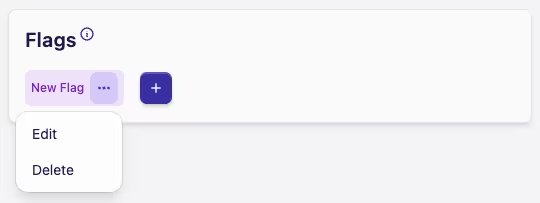
Click the Actions menu ··· on the flag you want to edit
-
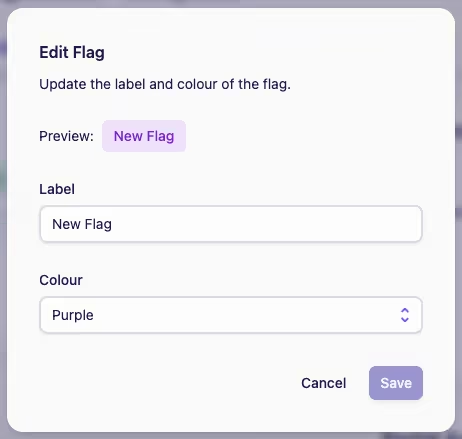
Click Edit to open the Edit Flag dialog
-
Make your changes and click the Save button
Delete a flag
To delete a flag:
-
Select a case type to configure and navigate to the Settings tab
-
Locate the Flags card
-
Click the Actions menu ··· on the flag you want to delete
-
Click Delete to open the Deleting a Flag dialog, which prompts you to confirm you want to delete the flag
-
Click Delete again to confirm you want to delete the flag