
Flags
Flags allow you to highlight important factors on a case. The flags available depend on the case type configuration.
Available case flags are found in the Flags card in the right-hand sidebar when viewing a case.
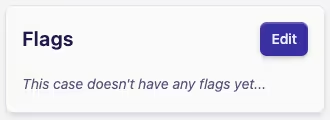
If you don't see the Flags card on the right-hand sidebar when viewing a case, it means that there are no flags configured for this case type. A team admin can check the case type configuration and add flags if required.
Adding or removing flags
-
Open the case you want to update
-
In the right-hand sidebar, find the Flags card
-
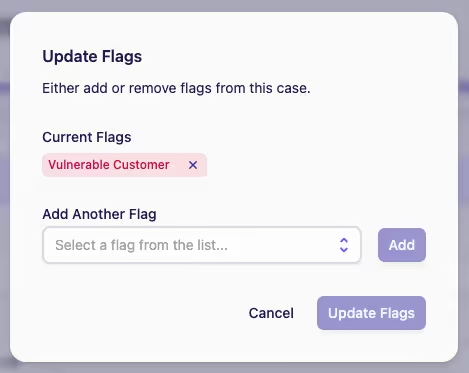
Click the Edit button to open the Update Flags dialog
-
To add a flag, choose the flags you want to add from the Add Another Flag dropdown
-
Click the Add button next to the dropdown
-
You can repeat steps 4 and 5 to add as many flags as you need from the list
-
To remove a flag, simply click on the cross of the flag you wish to remove
-
Finally, click Update Flags to save your changes to the case