
Sharing files & notes with parties
It's possible to share both files and notes from a case with invited parties. Once a file or note has been shared with a party, that party will be able to view or download the file or note in the Case Portal.
Sharing files
Files can be shared with parties either when a file is being uploaded to the case, or at any time afterwards.
To share a file with a party:
-
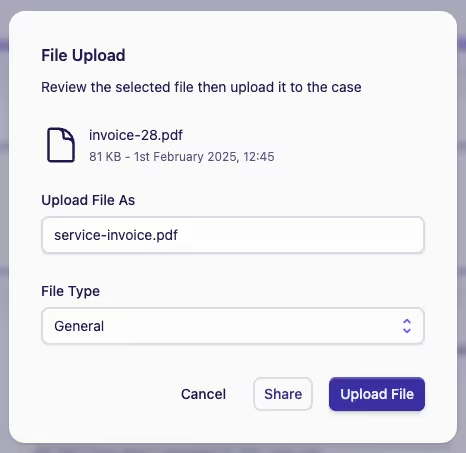
In the Files tab for a case, upload or edit a file
-
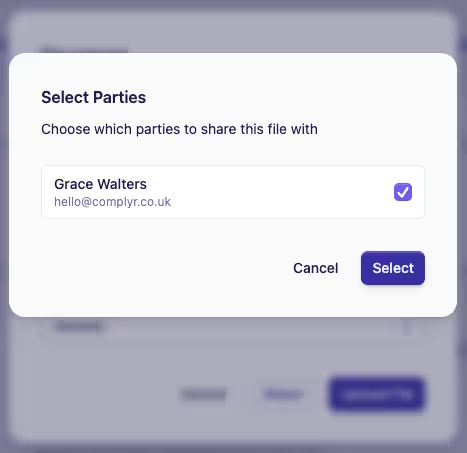
Click the Share button to open the Select Parties dialog
-
Select the party you wish to share the file with and then click Select
-
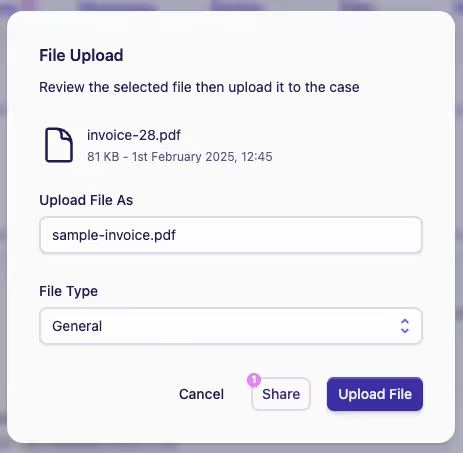
The file upload / edit file dialog will now show an indicator on the Share button confirming that that file is ready to be shared
-
Click the Upload File or Save Changes button to upload or save the changes to the file
-
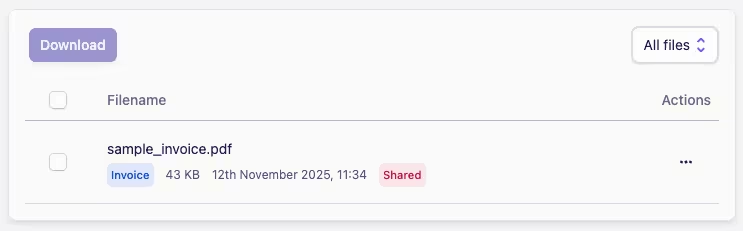
A Shared label will appear next to the file in the Files tab to indicate that it has been shared
Sharing notes
Notes can be shared with parties either when a note is being added to the case, or at any time afterwards. To share a note with a party:
When adding a new note to a case, that you want to share with a party:
-
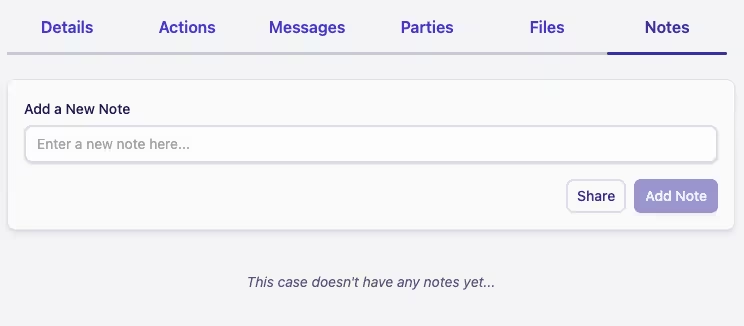
In the Notes tab for a case, add a new note to the case
-
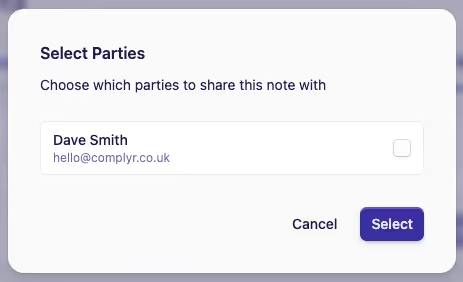
After you've typed your note, click the Share button to open the Select Parties dialog
-
Select the party you wish to share the note with and then click Select
-
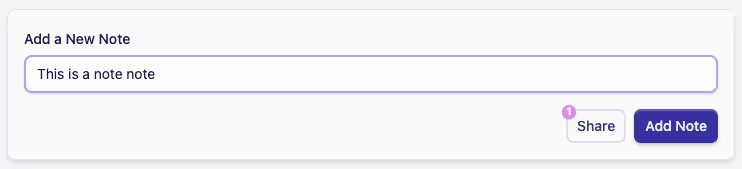
The note editor will now show an indicator on the Share button confirming that the new note will be shared when it is added to the case
To share an existing case note with a party:
-
Click the Actions menu ··· on the note you want to share

-
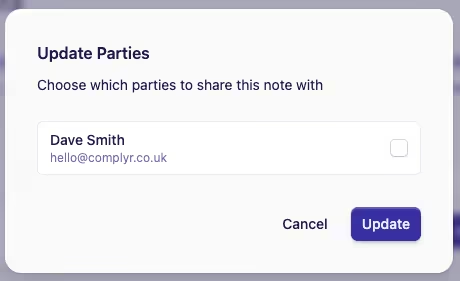
Click Update Sharing to open the Update Parties dialog
-
Select the party you wish to share the note with and then click Update
-
A Shared label will appear next to the notes in the Notes tab to indicate that it has been shared

Stop sharing a file or note
To stop sharing a file or note with a party the process to follow is the same as sharing existing files or notes, the only difference being that you untick the party or parties that you no longer want to share that file or note with.
Once sharing has been stopped, that party will no longer be able to see the shared file or note in the case portal.
What the party sees
When a file or note is shared with a party, the party will receive an email notifying them that they have a new secure message in the case portal and inviting them to sign in to view it.
Once signed in to the portal, they will be able to see the shared file or note immediately.