Actions
Actions are shown in two places within Complyr:
-
First, within the case itself, the Actions tab shows all actions that are associated with that case
-
Second, under My Actions in the sidebar menu, you can see all actions that are assigned to you across all cases
Case Actions
The Action tab on a case contains all actions associated with a case, whether they were added when the case was created (based on the case type's workflow), through activity in the case portal or added manually.
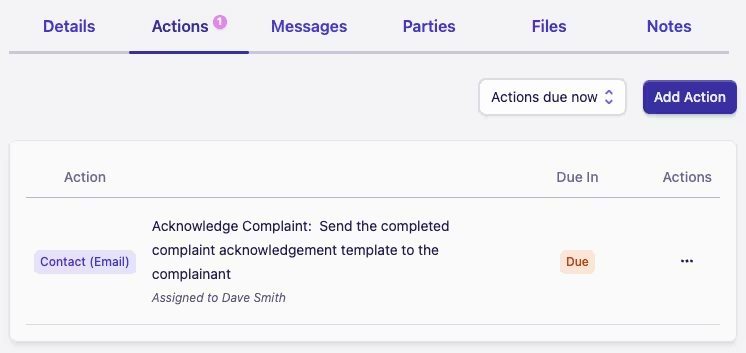
Here you are able to select whether to show Open actions (the default view), Actions due now or All actions using the filter in the top right of the Actions tab.
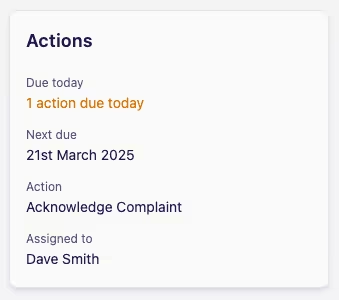
Each case will also have an Actions card in the right sidebar showing the next upcoming action on the case.
My Actions
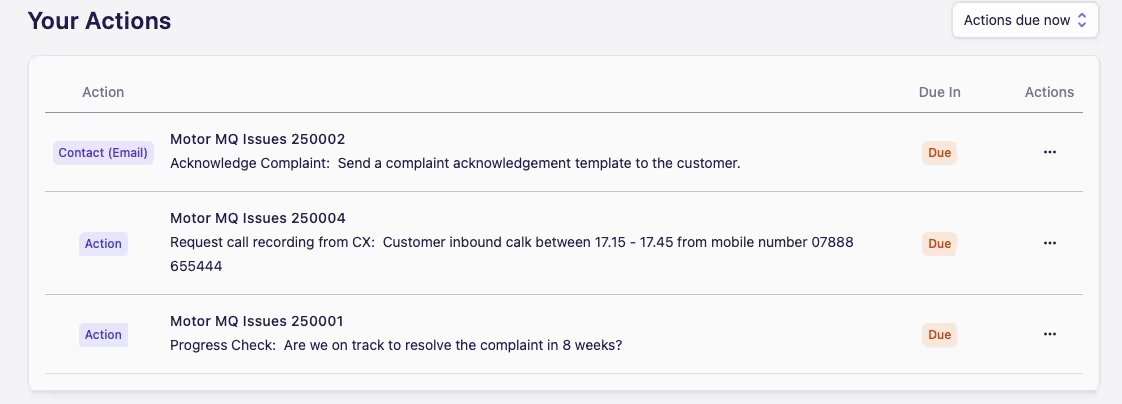
This is where a user can see all Actions currently assigned to them. Using the filter in the top right of the screen, users can choose to see either Actions due now (the default view), Open actions or Closed actions that are assigned to them.
Clicking an Action row will open up the associated case.
Adding an Action
Actions can be added to a case at any point, which is a handy way of setting reminders or assigning tasks within a case to specific people.
To add an Action:
-
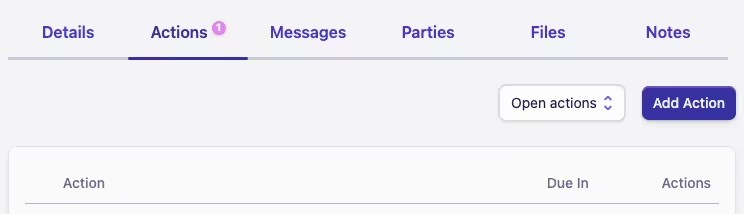
Open a case and go to the Actions tab
-
Select Add Action in the top right of the Actions tab, which will open the Add Action dialog
-
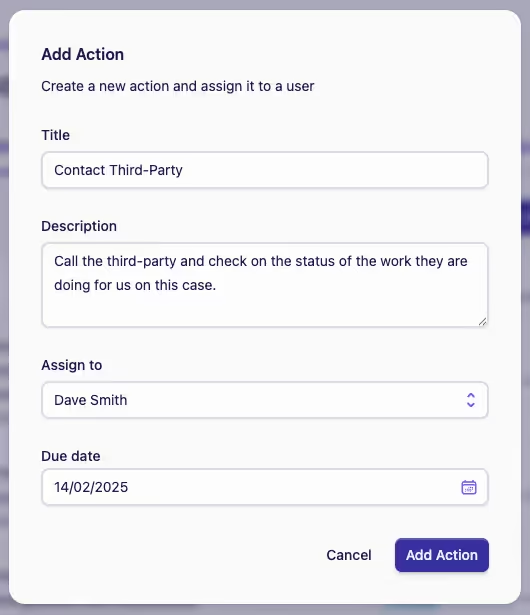
Complete the form, selecting who to assign the Action to and when it should be due
-
Click the Add Action button
Closing or Updating an Action
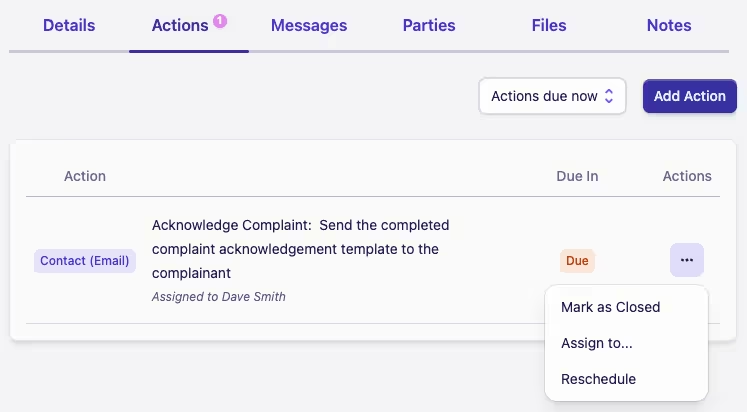
All actions have three options accessed through the Actions menu ···
-
Mark as Closed: This will simply mark the action as closed
If the action is already closed, this option will be replaced with Mark as Open which will set the action back to open. Handy if the action was closed in error!
-
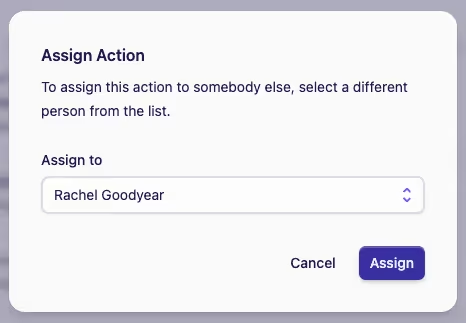
Assign to...: This option allows you to assign the action to another user. Simply select the user from the Assign to dropdown and click Assign
-
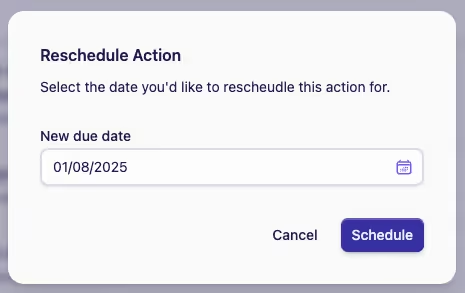
Reschedule: This option allows you to change the due date of the action. Simply select a new date from the date picker under New due date and click Schedule