
Case form sections
A case form can contain one or more sections, each of which can contain one or more fields to logically group the data captured for a case.
-
The information/data needed to manage a case from start to finish. This will be helpful to configure the Full Case Form.
-
The details that need to be captured about a case in order to start its investigation. This will be useful to configure which sections should be on the user and public new case forms.
Adding sections
-
If this is a new form definition, click Add one now? to create the first section

-
If this is an existing form definition, click Add Section to create a new section
-
Once added, the new section will have the heading "New Section". Update this to the heading of your choice, to reflect the data you want to capture in this section
Configuring a section
-
Clicking the ∨ on the right of the section heading will open it up and reveal the section details
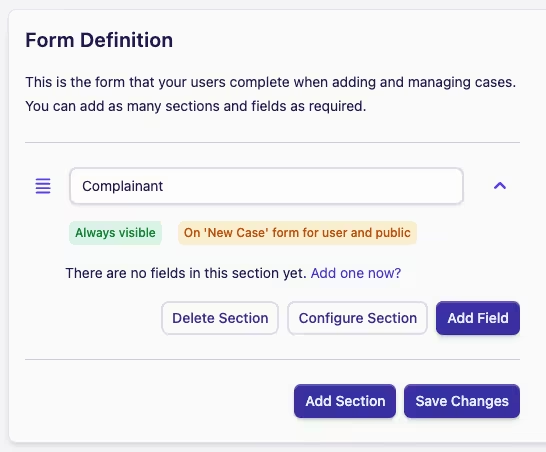
Here we can see the high-level visibility summary, whether the section is included on any new case forms and the list of fields in this section
-
Click the Configure Section button to open the section configuration dialog

-
The first option is Visibility on a "New" case form. You have three options for when the case form section can be seen:
-
Visible in all case statuses: this section will always be visible to the user, regardless of the status of the case
-
When case status is in: this section will only be visible when the case is in one of the chosen statuses
-
When case status is not in: this section will only be visible when the case is NOT in one of the chosen statuses
 For example:
You may have a "Customer Details" Section and a "Complaint Costs" Section on your Full Case Form. You want "Customer Details" to be visible in all case statuses, but "Complaint Costs" only visible after the initialcase capture and acknowledgement
If you want visibility on most case statuses with only a few exceptions, rather than having to select multiple statuses using "When case status is in", select When case status is not in. Here, "Complaint Costs" is visible on the full case form, except When the status is not in three case statuses
-
-
When the visibility of a section is dependent on a Status, the section details will update to show that Visibility depends on status

-
The second option is Include on 'new' case form. Here you can choose whether this section should be included on one or both of the user and public new case forms
New Case FormsIt's important to note that sections can only be included on new case forms when they are visible in all case statuses, i.e. any data captured on the new case form will always be visible in the case.
The difference between User and Public new case forms:
-
User new case form: as the name suggests is the form users complete when adding new cases
-
Public new case form: is the form made available if you have configured public case form access
If you don't want this section visible on the New Case Form, leave the for Users and for Public boxes unticked.
-