
Defining case list columns
Case list columns are configured for each team in Team Settings. These columns can then be mapped to each Case Type - see Map case list columns to data
What is the function of case list columns?
Case list columns are designed to display specific data points for cases, allowing users to quickly view, sort, filter, and identify relevant information.
Key functions include:
-
Data visibility: Displaying key information for each case (e.g., case ID, assignee, age) to help users identify, select, and work on specific areas of the case
-
Actionable insights: Providing immediate, scannable data for quick decision-making and efficient case management, such as identifying overdue actions
Customising at team level
This is where you decide how your Home Screen will look for all of your teams.
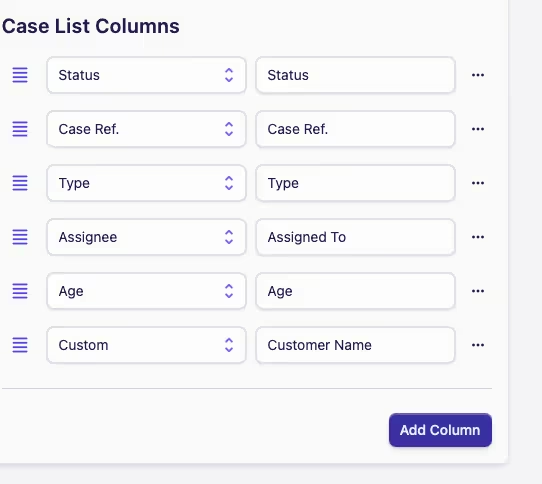
Initially, the app will display the following standard columns:

You can either:
-
Leave them as they are, or reorder them (see step 4.)
-
Remove standard columns by selecting the meatball menu at the end of the row and then Delete
-
To customise a column, select Add Column. The word Custom will appear in the first box. Type your column heading into the adjacent box - the example shows "Customer Name"
-
Reorder case list columns using the Grab Handle located to the left of the column boxes to move the column row up or down
Your Home Screen will now include your custom column:
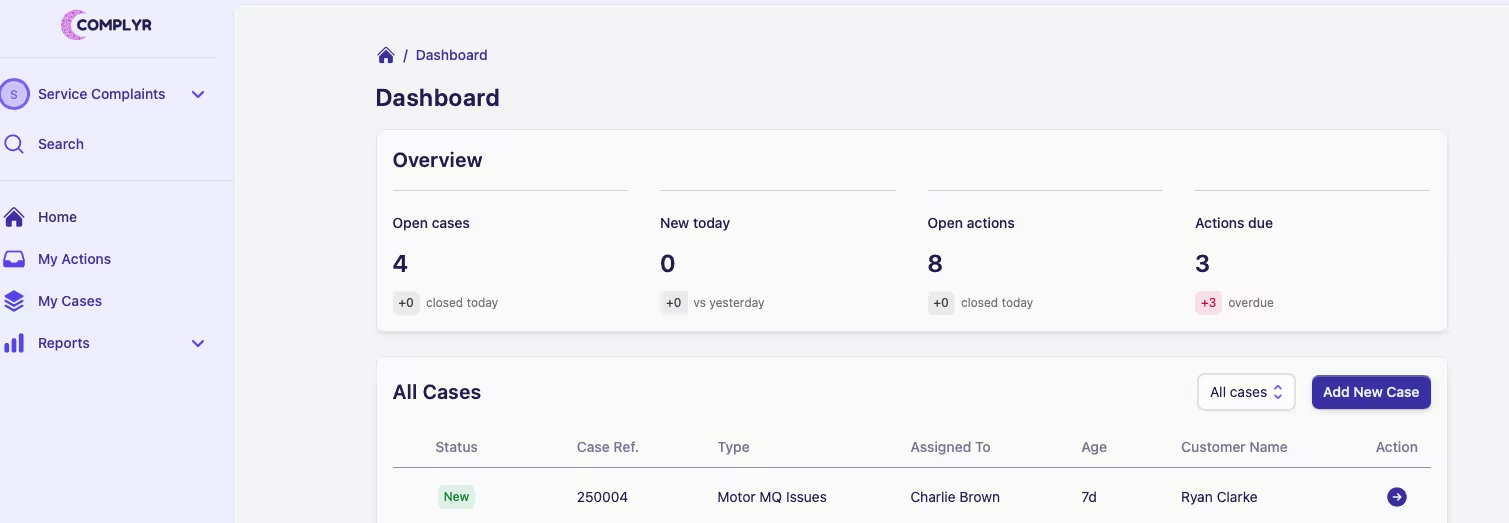
Visual information is always good, but too much can make the screen look cluttered and difficult to scan.
The Home screen should ideally be used as a high-level overview to track progress, spot issues early, and identify any areas needing attention.