
Public case forms
First, select the Meatball menu under the Actions column of the public case form being worked on.
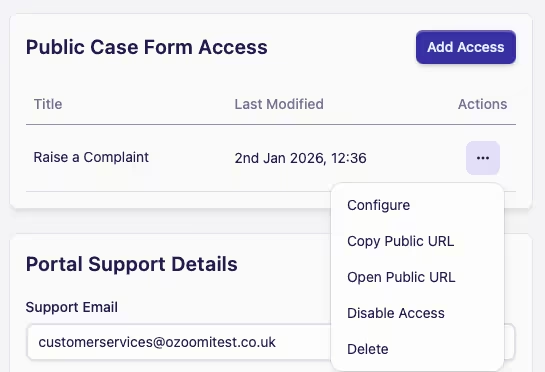
Actions Available
-
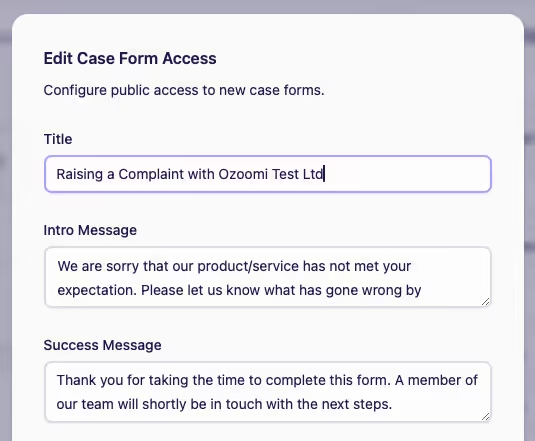
Configure
(i) Edit the Case Form Access by updating the chosen field: Title, Intro Message, Success Message
(ii) Click Generate URL to save changes
-
Copy Public URL - copies it to your clipboard which can then be used:
(i) by internal teams who need only Public Access
(ii) to use in email templates that you may send to customers, introducers, etc
(iii) anyone needing Public Access to case forms who hasn't got a paid seat under the subscription plan
-
Open Public URL
(i) If access to the form has been allowed on more than one case type, the associated case type will first need to be selected in order to proceed
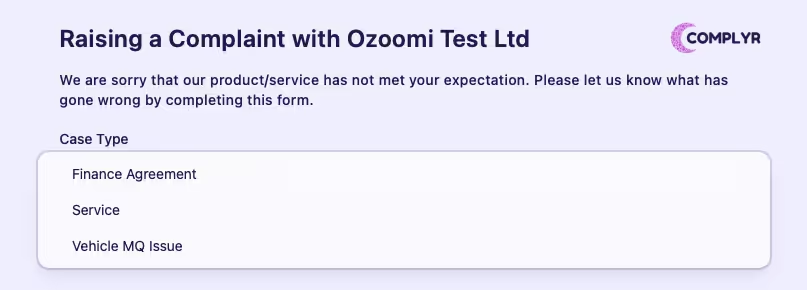
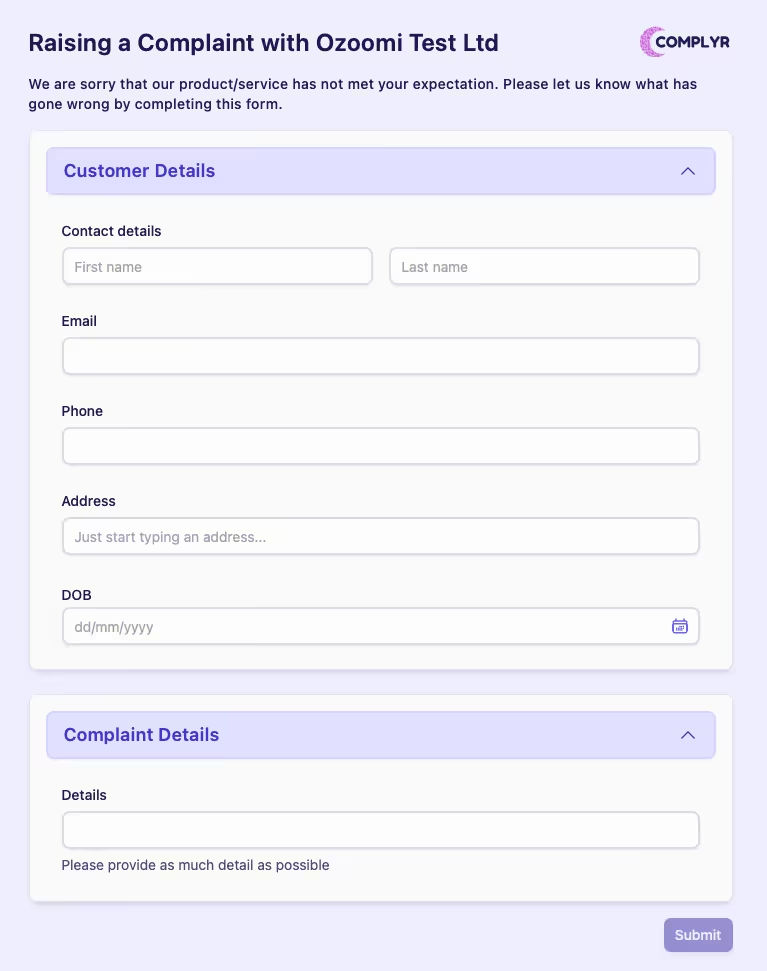
(ii) Once the case type has been selected, the configured form for the case type plus the intro message will be displayed - see Case form definition to learn more about how this form is configured
-
Disable/Enable - controls access to the public case form
Example: a public case form is configured in advance of a release date and therefore needs to have the access temporarily disabled. -
Delete - permanently removes the Public Case Form