Sending a message
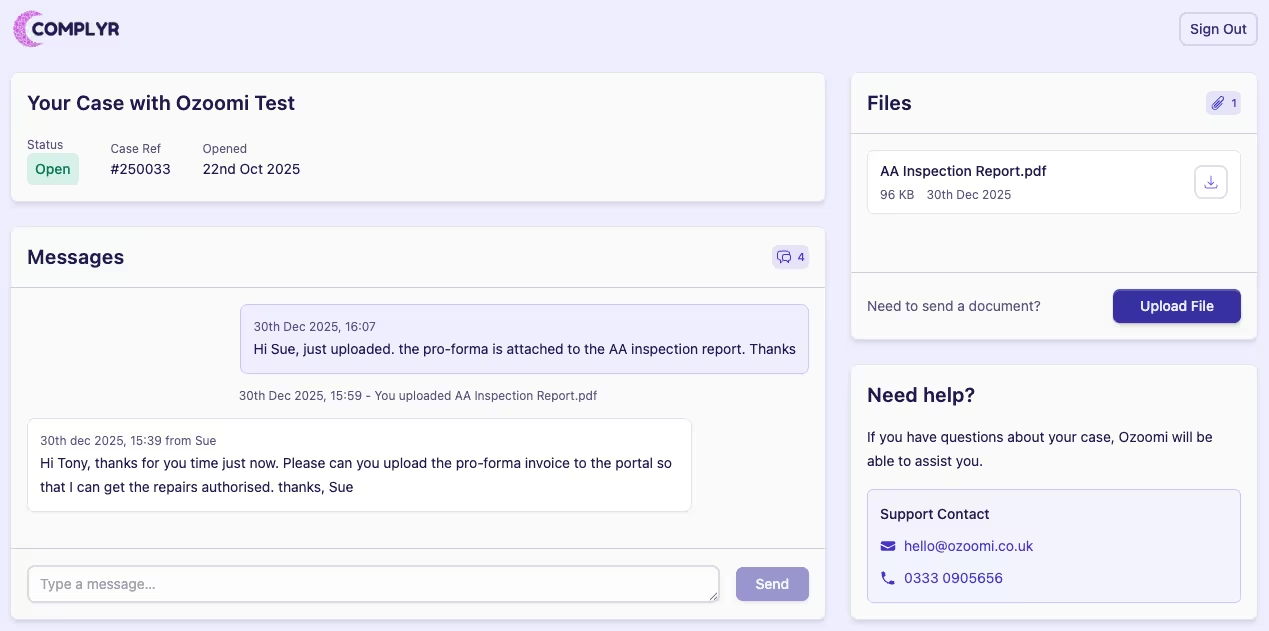
A party that has been invited to the case portal can send a secure message by:
-
Signing in to the case portal
-
Typing their message in the input box on the Messages card
-
Clicking the Send button
After a party sends a message to you through the case portal, two things happen.
-
Firstly, the message will appear in the Messages tab of the related case.
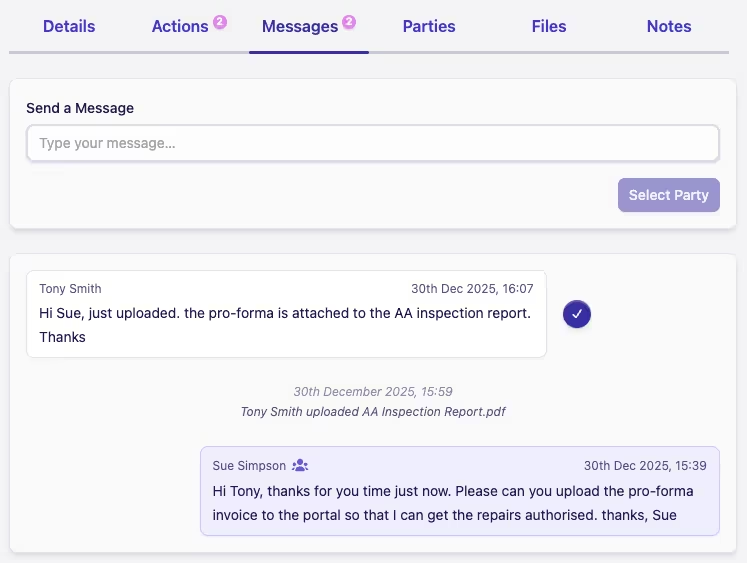
A new message indicator will appear next to the Messages tab to alert you to the new message. Clicking the ✓ button next to the new message being read will mark it as read and update the indicator.
-
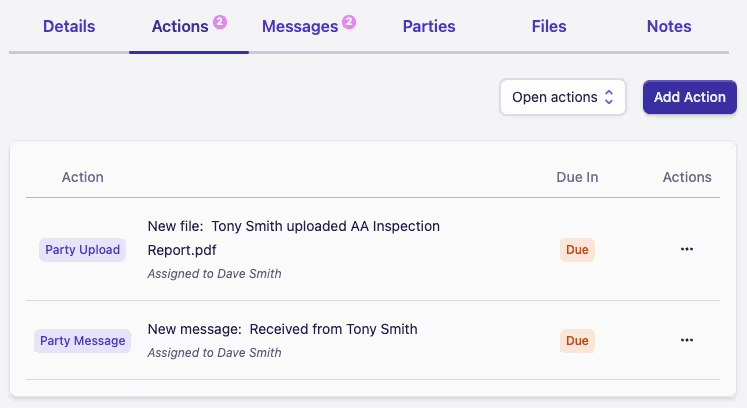
Secondly, a due action of type Party Message will be added to the case to alert the assigned case owner to the incoming message. As with all case actions, this will be visible in both the case and the case owner's My Actions list.