Adding users to the account
Add a user
You may want to delay adding users until you have completed the team and workflow set-up
As soon as the Add User button is activated, an automated invitation email will be sent from the Complyr system containing a temporary password and instructions for the user to sign in.
-
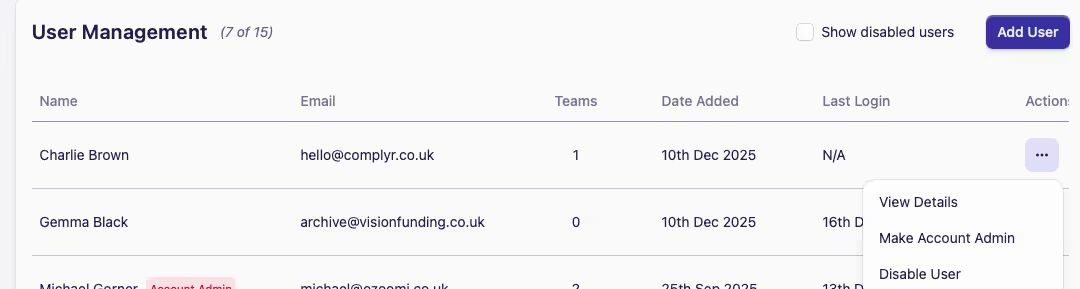
Go to the User Management card, select Add User
-
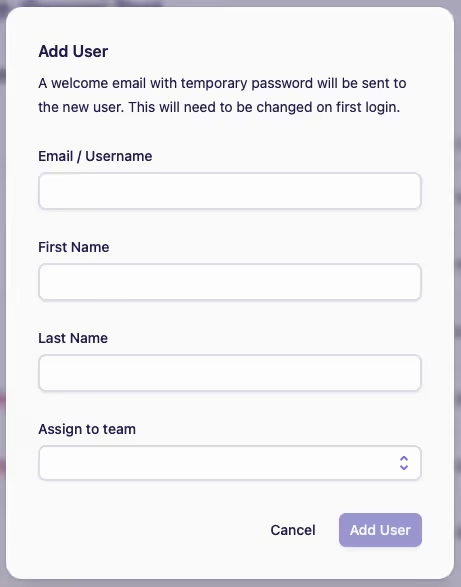
Complete the following fields and then Add User to save the information
-
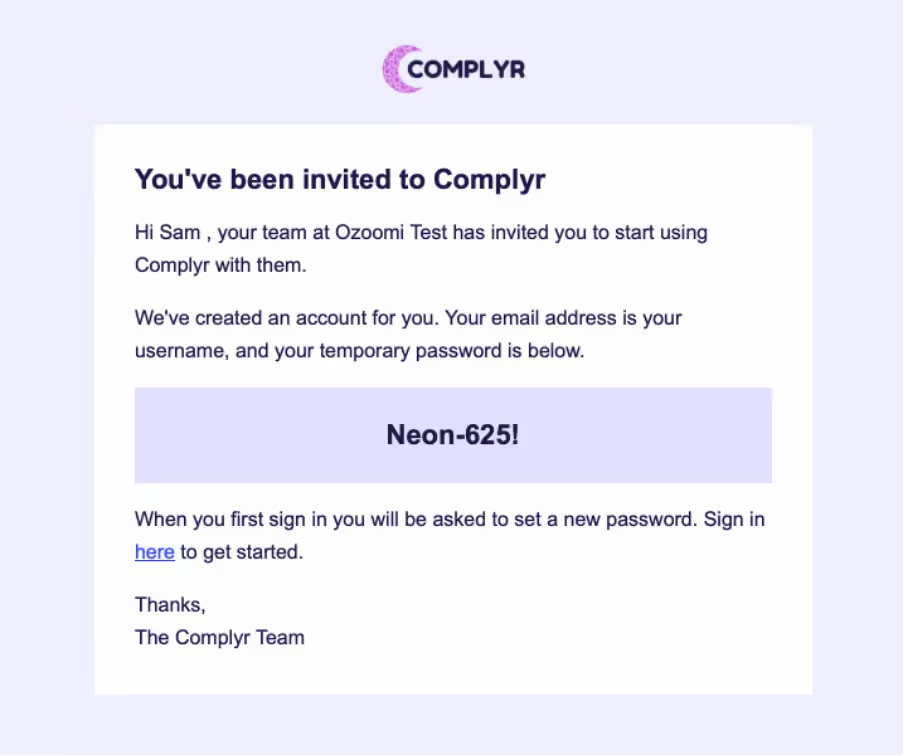
As soon as Step 2 has been confirmed, the invited user should receive an invitation email containing a temporary password. If this isn't received within 60 seconds, please ask the recipient to check their junk folder
The email invitation will look similar to this image (personalised with your firm's details):
The total number of users allowed under your subscription plan will be shown in brackets beside User Management.
The example shows (7 of 15): The total number of seats available is 15: currently, 7 seats are in use.