
Managing users on the account
If you are swapping users in and out of a seat that is already being paid for, it's important that you follow the process order shown below to avoid being billed for an additional seat:
-
Disable user A, then
-
Add user B
-
The number of seats in the brackets beside the User Management heading should show as unchanged
Manage user access
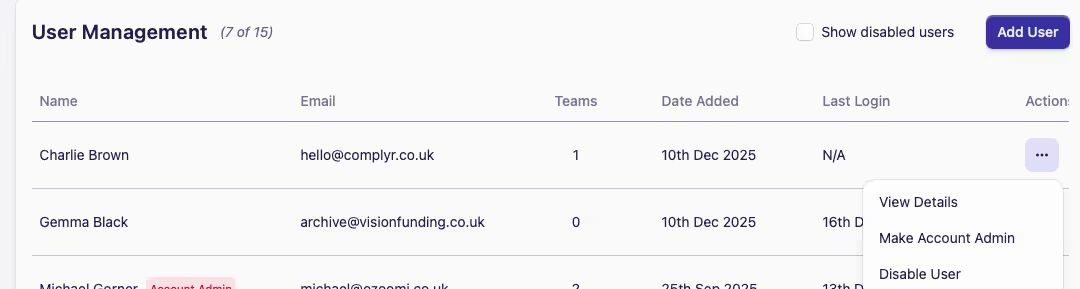
In User Management, enabled users can be given Account Admin access or be disabled from the entire system.
-
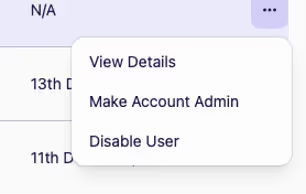
To disable a user from the Complyr app click the meatball menu under the Action column next to the user's name, and select Disable User
-
Disabled users will be hidden from view. Tick the Show disabled users box to include them on the main screen view
-
If you want a disabled user to be enabled, follow the above process under step 1. and select Enable User
-
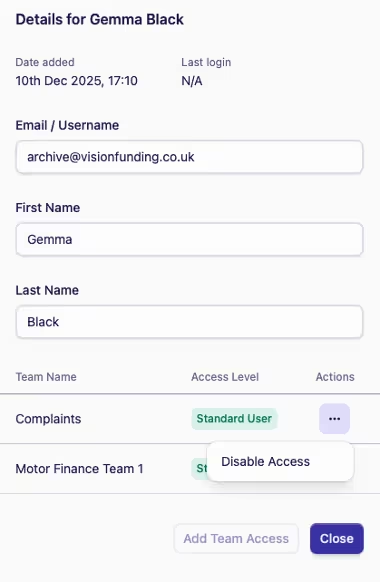
To disable/enable a user from a team access level (not the entire system), you can either go to:
(i) Click the meatball menu under the Actions column next to the user's name, and select View Details
(ii) Select the meatball menu under Actions column of the team you are disabling the user from
(iii) Select Disable Access / Enable Access
(iv) See Manage user permissions